The board
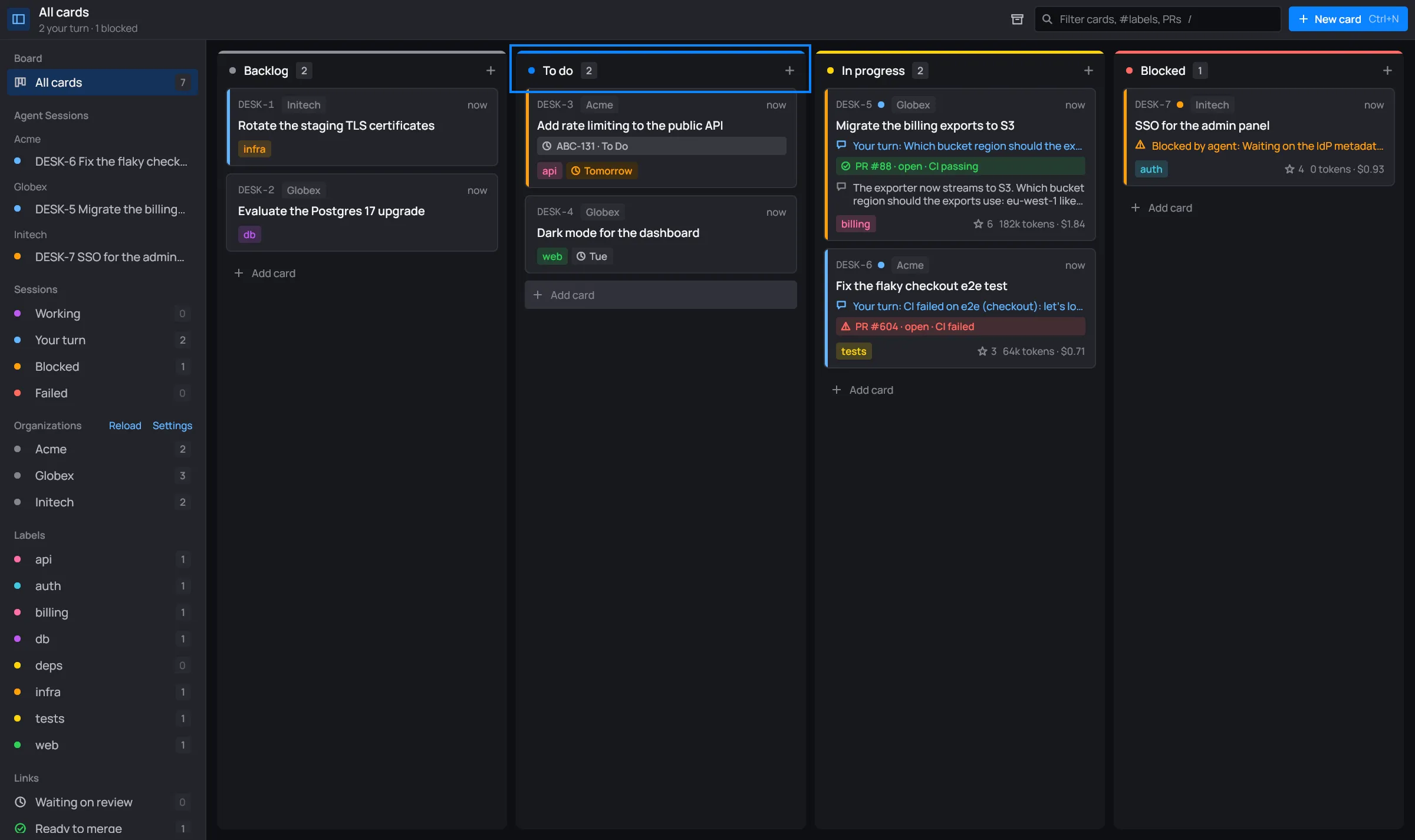
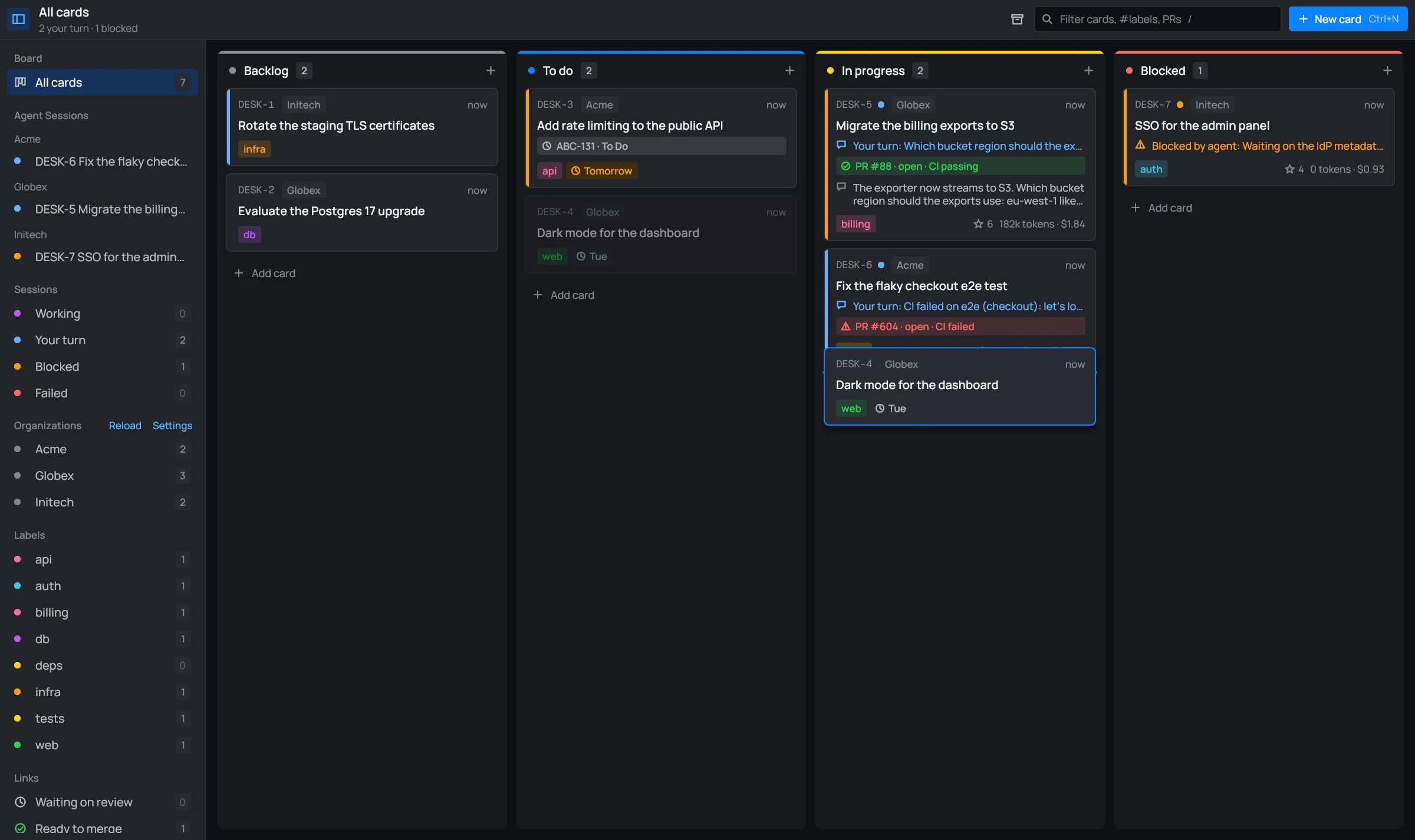
The board is desk’s main window. Every card on it is one Claude Code session. The sidebar is on the left, the toolbar runs along the top, and the columns fill the rest.
Columns
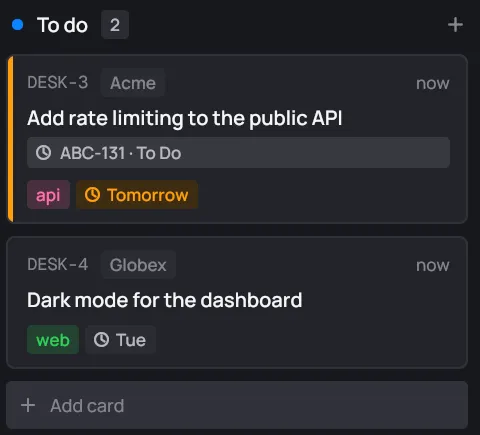
Section titled “Columns”A board has five columns: Backlog, To do, In progress, Blocked and Done. Each has its own color: To do is blue, In progress yellow, Blocked red, Done green.
The board never shows the Done column. Done cards wait in the Done archive instead, so the board holds only work that’s still open.
Sessions move their own cards. Sending a message moves the card to In progress. When Claude reports it’s blocked, the card moves to Blocked. When Claude reports it’s done, the card moves to Done.

There are two ways to add a card to a column: the + in its header, or Add card at its foot. Both open the new card dialog for that column.
The toolbar
Section titled “The toolbar”
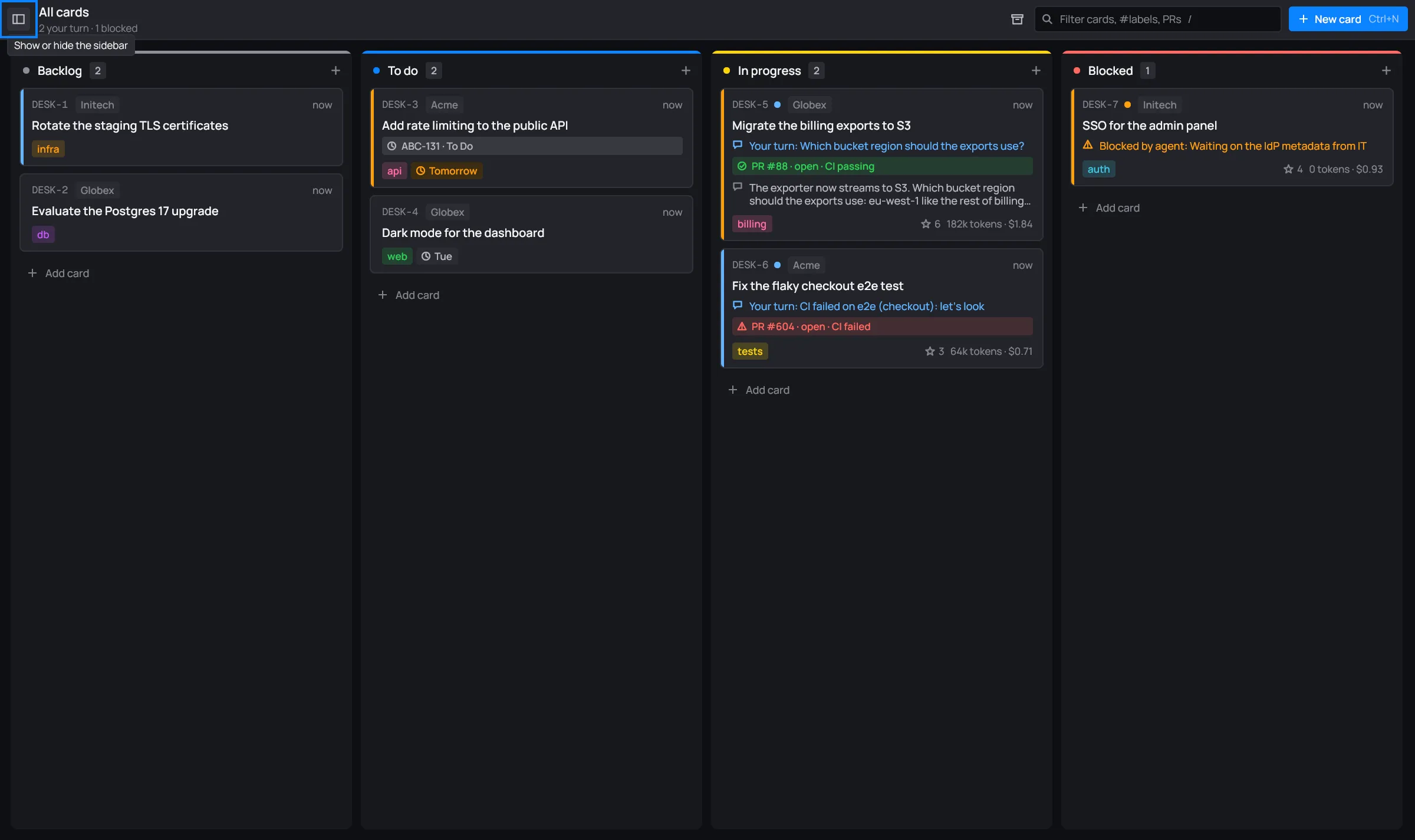
- Sidebar toggle: shows or hides the sidebar.
- The header: the view’s name, with its summary under it.
- Unlock vault: shows up only when a password vault is waiting for its password. See Vaults.
- The archive box: archives every card in Done. See Done archive.
- The search field: filters the cards. See Search.
- New card (Ctrl+N): opens the new card dialog.

The header line
Section titled “The header line”The header names the view you’re in (“All cards”, “Your turn”, “#api”, “Acme”…). Under the name, a line sums up the view’s cards by status, such as “2 your turn · 1 blocked”. It counts the cards that are working, waiting on your turn, blocked or failed, and the ones past their due date (“1 overdue”). When none of those apply, it just counts the cards (“3 cards”). Done cards don’t count.

Sidebar on and off
Section titled “Sidebar on and off”The toggle at the toolbar’s far left shows or hides the sidebar. With the sidebar hidden, the columns spread across the whole window.

Moving cards
Section titled “Moving cards”To move a card, drag it to another column, or higher or lower in the same one. While you drag, a blue line shows where the card will land. Its old place stays faded until you let go.
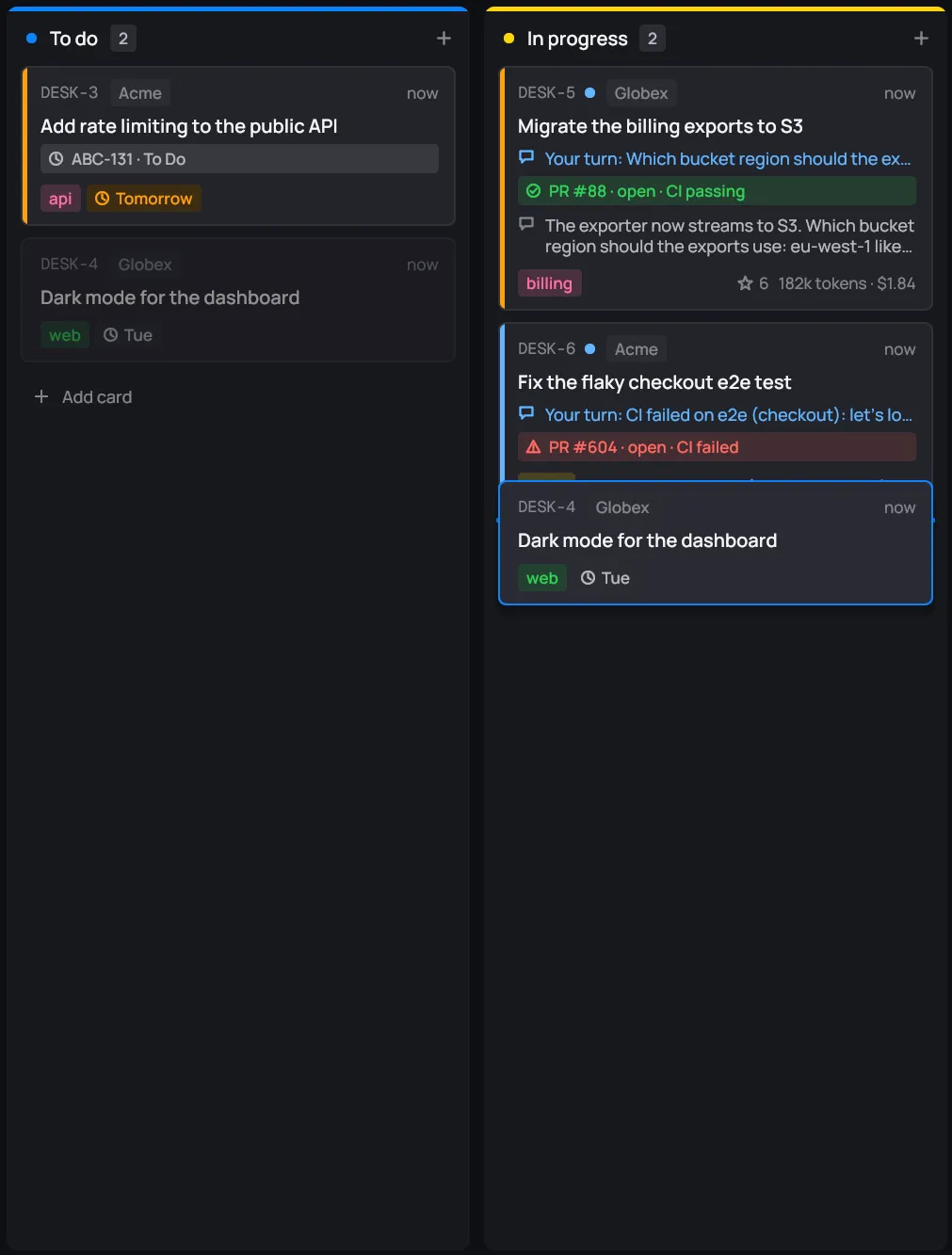
A click on a card, without dragging it, opens its session panel. You can also move a card from its right-click menu (Move to).
Board keys work only on the board itself, not while you type in a field or a dialog.
| Do | Keys |
|---|---|
| Select a card | the arrow keys |
| Move the selected card | Ctrl+arrows: up or down in its column, or to the column beside it |
| Open its session | Enter |
| Edit it | E |
| Open its terminal | T |
| New card | Ctrl+N, in the selected card’s column (else Backlog) |
| Search | / or Ctrl+F |
| Go anywhere | Ctrl+K, the palette |
| Back out | Esc: the dialog, the search, the panel, then the selection |
The full list is in Keys.