New card
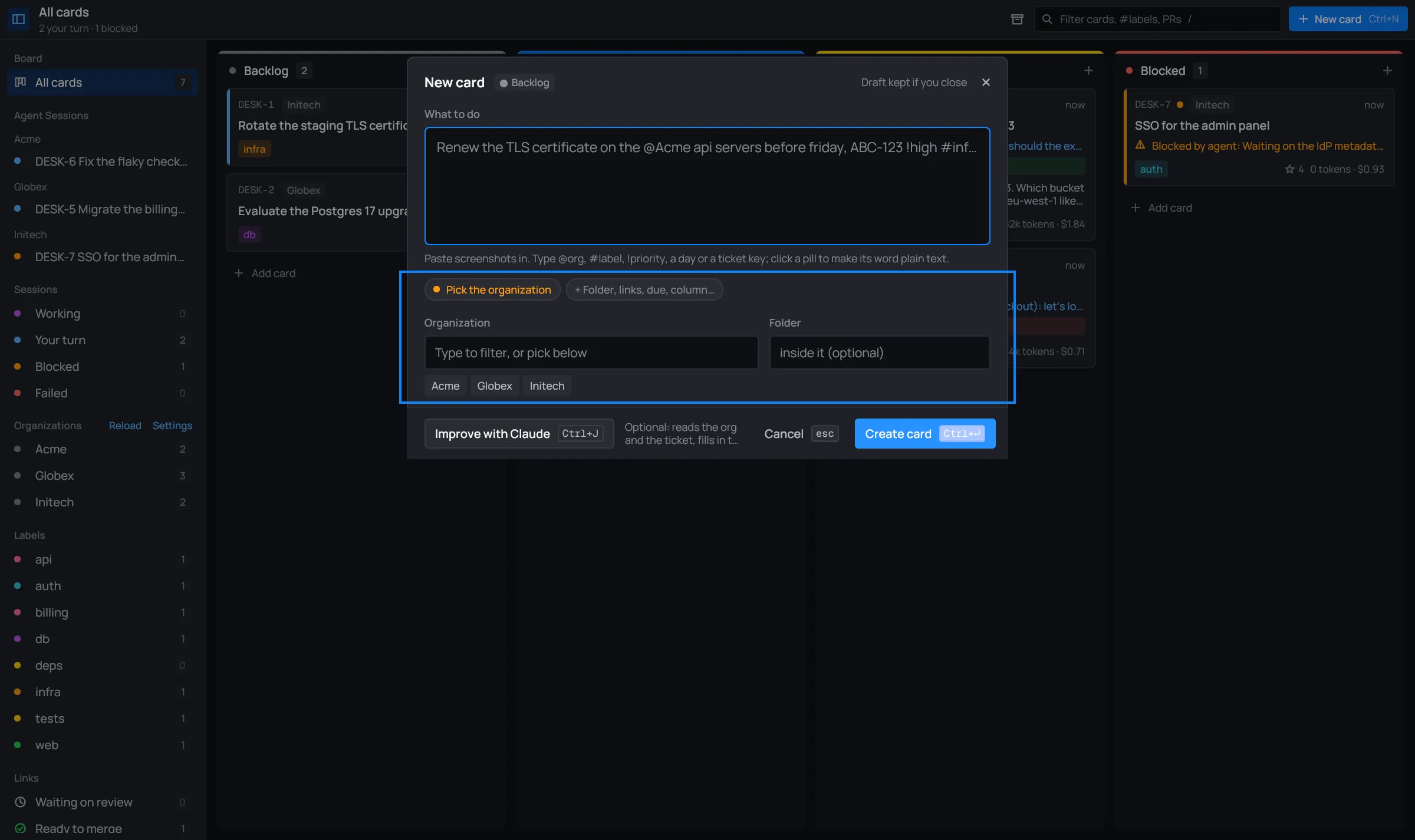
Every card starts in the new card dialog. You say what to do, in plain words, and pick the organization its session starts in. desk reads the rest out of what you typed.
Open it
Section titled “Open it”- Ctrl+N on the board, or New card in the toolbar. The card goes in the selected card’s column, or Backlog when none is selected.
- A column’s +, or Add card at its foot. The card goes in that column.
- New card or New card in organization from the palette.
The dialog’s header names the column the card goes to. To pick another, see More fields.

The organization starts as the one you’re looking at: the sidebar’s organization view, or its Tickets. Otherwise it’s the organization of the last card you made. From a label view, the card starts with that label.
Make a card
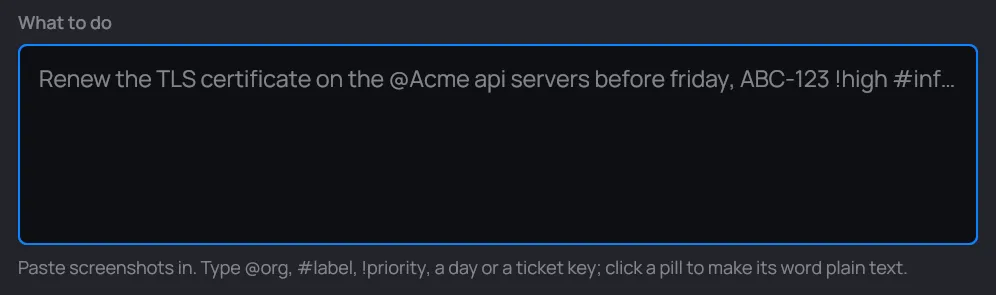
Section titled “Make a card”- Type what to do in the box, as it comes. Enter makes a new line.
- Pick the organization, if desk doesn’t have one yet.
- Optionally, Improve with Claude (Ctrl+J): Haiku works your request out into a full brief. See Improve with Claude.
- Create card (Ctrl+Enter).
The new card’s panel opens and its session starts working right away. Its title, notes and links go with the first message.
Without Improve, the first line of what you wrote becomes the card’s title (without the smart words below) and the whole text becomes its notes.
Smart words
Section titled “Smart words”As you type, desk picks out words that say something about the card and shows each one as a pill under the box:
| Type | Sets | Example |
|---|---|---|
@Org |
the organization, if one has that name | @Acme |
#label |
a label | #infra |
!priority |
the priority: !low, !medium, !high (also !lo, !med, !hi, !urgent) |
!high |
| a day | the due date: today, tomorrow, a weekday (the next one), next week, or a date 2026-11-06 |
friday |
| a ticket key | a link to that Jira issue | ABC-123 |
| a URL | a link: a pull request, an issue, a merge request… | https://github.com/acme-corp/api/pull/612 |

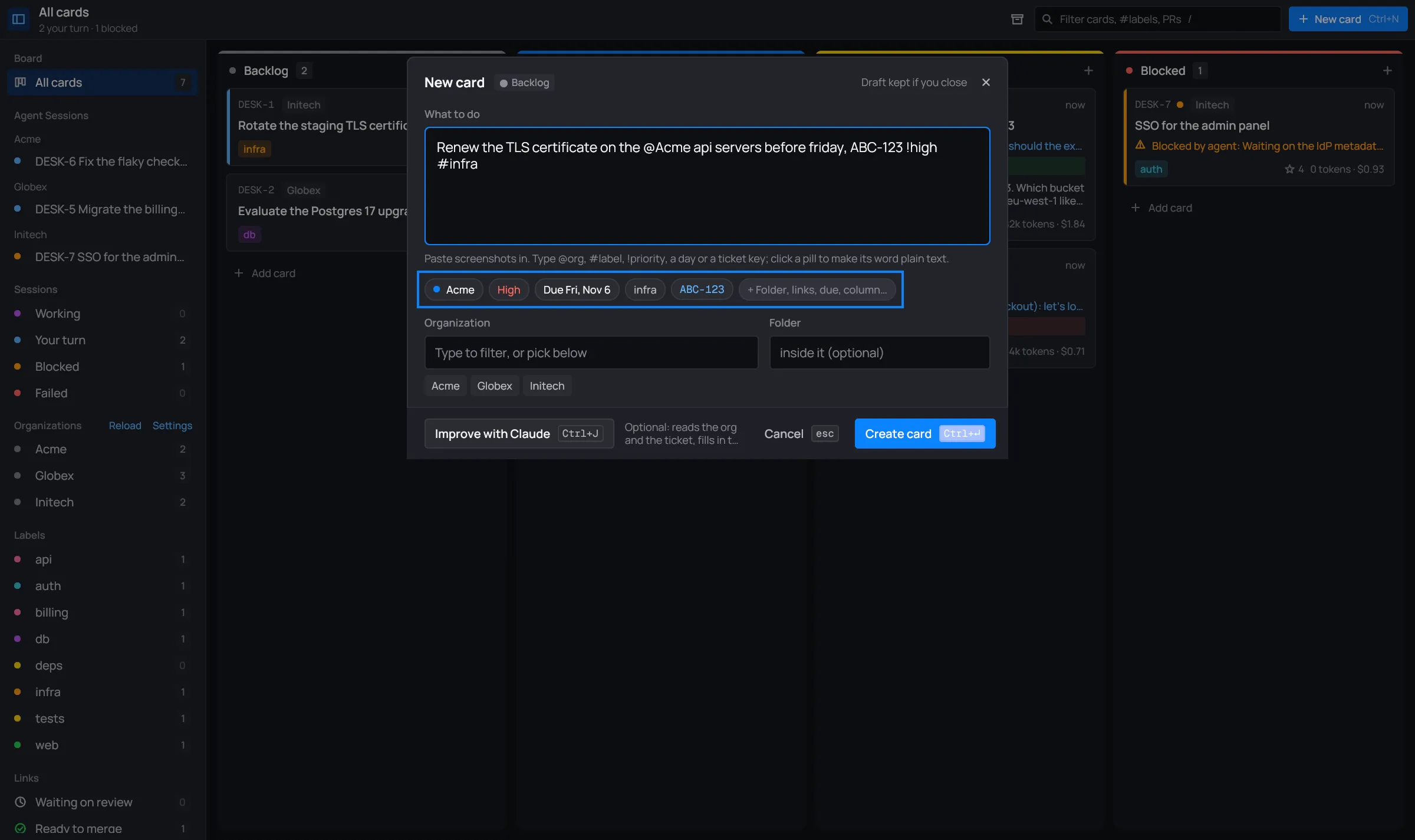
@Acme, #infra and !high only set fields, so they’re left out of the title.
Days, keys and URLs stay in it: they read as part of the sentence.
Meant the word, not the field? Click its pill. The word goes back to plain text, and the pill goes away.
A ticket key only becomes a link when the organization has a Jira account for it:
one whose projects in desk.toml list the key’s project, or the organization’s
only Jira account. See Accounts.
The organization and folder
Section titled “The organization and folder”A card’s session runs in an organization’s folder, so the dialog asks for one until it has it. A pill says Pick the organization, and the organization row shows up under it.
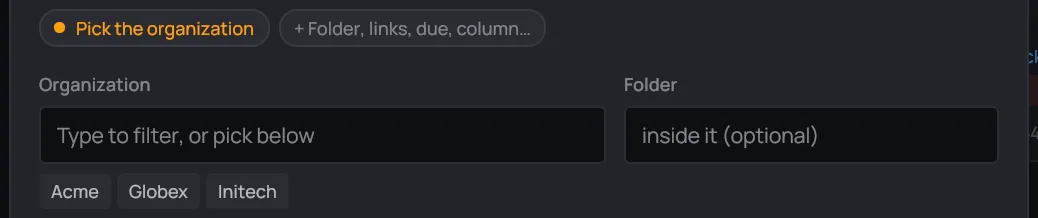
- Organization: type to filter the list (with fzf’s matching), and click one.
Enter in the field takes the first match.
@Acmein your text works too. - Folder (optional): a folder inside the organization. Once you’ve picked an organization, desk shows where the session starts (“Starts in ~/Work/Acme”) and the organization’s subfolders. Click one to step in, ↑ up to step out, or type its path. change organization clears both.
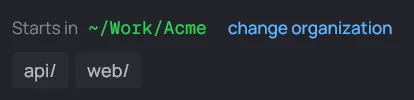
Organizations are your folders. See Organizations.
More fields
Section titled “More fields”The last pill, + Folder, links, due, column…, shows every field. − Fewer fields hides them again. A pill that comes from a field, rather than from a word in your text, shows them too when you click it.
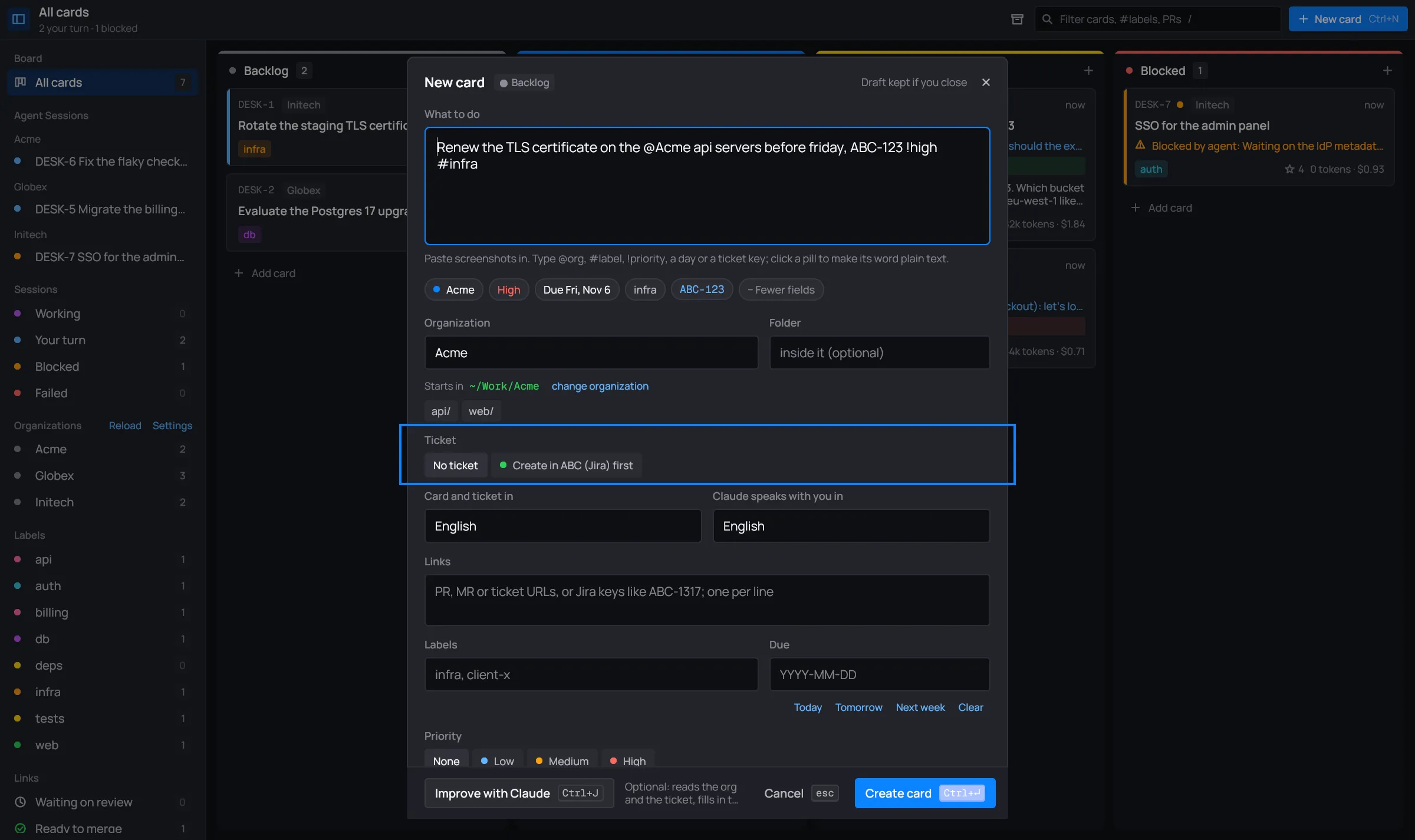
The fields, from the top:
- Organization and Folder, as above.
- Ticket: see below.
- Agent: only when the organization has Claude Code agents. Which one the card’s session runs as, or None. See Team view.
- Card and ticket in and Claude speaks with you in: the languages the card (and its ticket) are written in, and the one Claude uses with you. They start as the ones in your settings.
- Links: pull request, merge request or ticket URLs, or Jira keys, one per line.
- Labels, comma separated, and Due (
YYYY-MM-DD, or Today, Tomorrow, Next week, Clear). - Priority: None, Low, Medium, High.
- Column: where the card goes.
The dialog scrolls when the fields don’t fit. Its buttons always show.
The Ticket switch
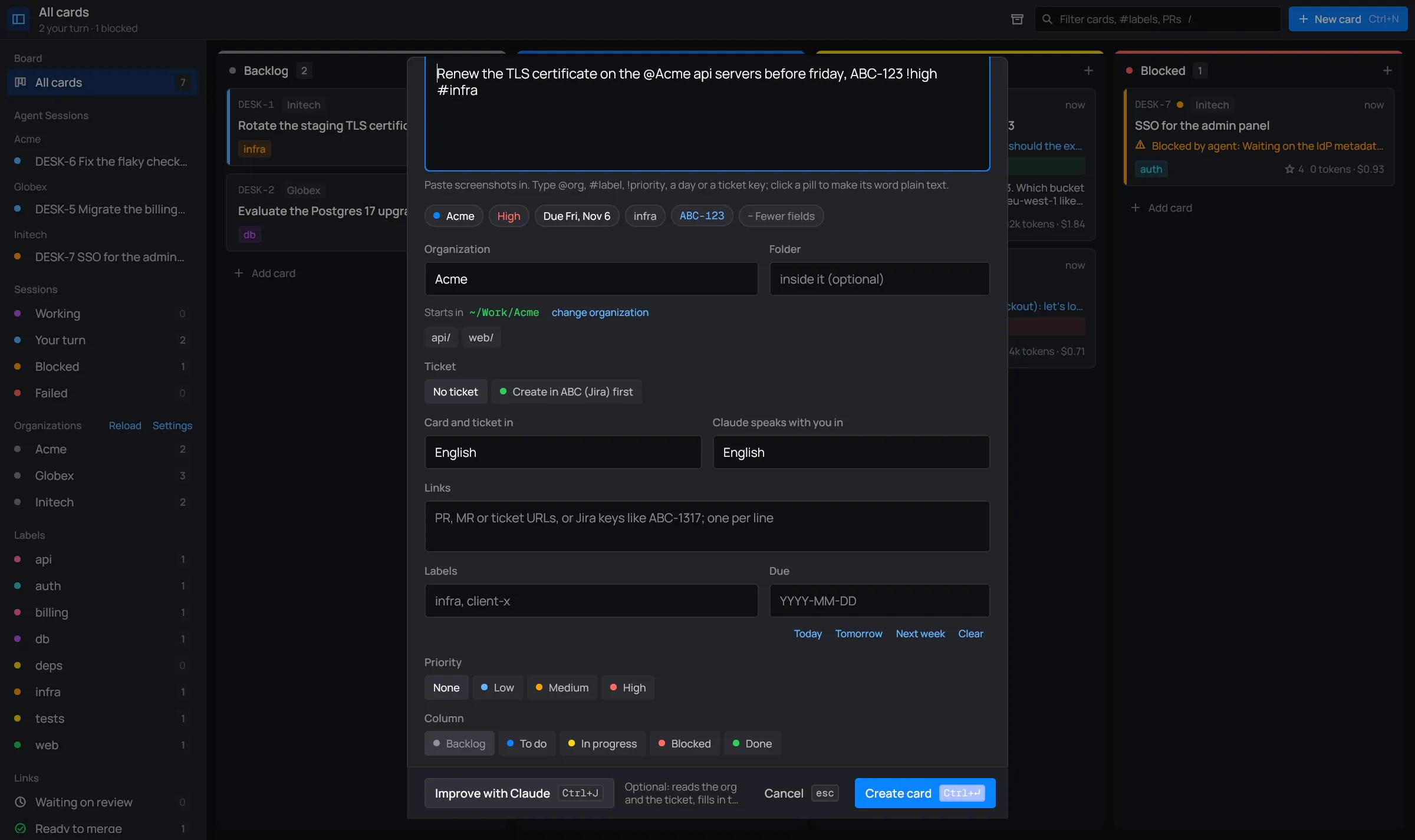
Section titled “The Ticket switch”When the organization has somewhere to create tickets (its first Jira project, or
a GitHub account’s repo), the Ticket row offers Create in ABC (Jira) first.
With it on, the card’s Claude creates the card’s ticket before any other work,
assigned to you, and the card links it.

The switch isn’t there when the organization has nowhere to create tickets. See
Accounts for repo and projects.
Screenshots
Section titled “Screenshots”Copy an image and press Ctrl+V in the What to do box. desk saves it next to the board and
puts  in your text. The session reads the image. Improve with Claude keeps it.
desk reads the image from the compositor itself (Hyprland, Sway, other wlroots compositors, KDE). There’s nothing to install. When the clipboard holds text, Ctrl+V pastes the text.
The draft
Section titled “The draft”Closing the dialog doesn’t lose what you typed. Close it with Cancel, Esc or the ×: the next new card dialog starts with your text. The header says so: “Draft kept if you close”. Once you create the card, the draft is gone.
Create card
Section titled “Create card”
Create card (Ctrl+Enter, or Ctrl+S) makes the card. desk checks a few things first, and a toast says what’s wrong:
- the card needs a title (something in What to do);
- the organization must be one of your organizations;
- the folder must exist inside it;
- a due date must read
YYYY-MM-DD; - each link must be a URL, or a Jira key the organization has a Jira account for.