
Improve with Claude
A short request is enough to make a card, but the session does better with a real brief. Improve with Claude turns what you wrote into one: Haiku reads the organization’s code and tickets and writes the card for you to look over. It’s optional.
Run it
Section titled “Run it”- In the new card dialog, type what to do and pick the organization.
- Click Improve with Claude, or press Ctrl+J.
- Watch it work, then look over what it wrote.
- Create card.
It needs an organization (it works in that organization’s folder) and some text in What to do. Without them, a toast says what’s missing.
What it does
Section titled “What it does”The latest Haiku runs as Claude Code in the organization’s folder, under the
organization’s Claude account. It reads the folder’s CLAUDE.md files and its code,
and changes nothing. It sees the skills, plugins, subagents and MCP tools the
organization’s sessions have, and has the session start with the ones that fit.
Tickets and pull requests your request names are read first, through the organization’s own accounts.
While it runs, the dialog shows what it’s doing:
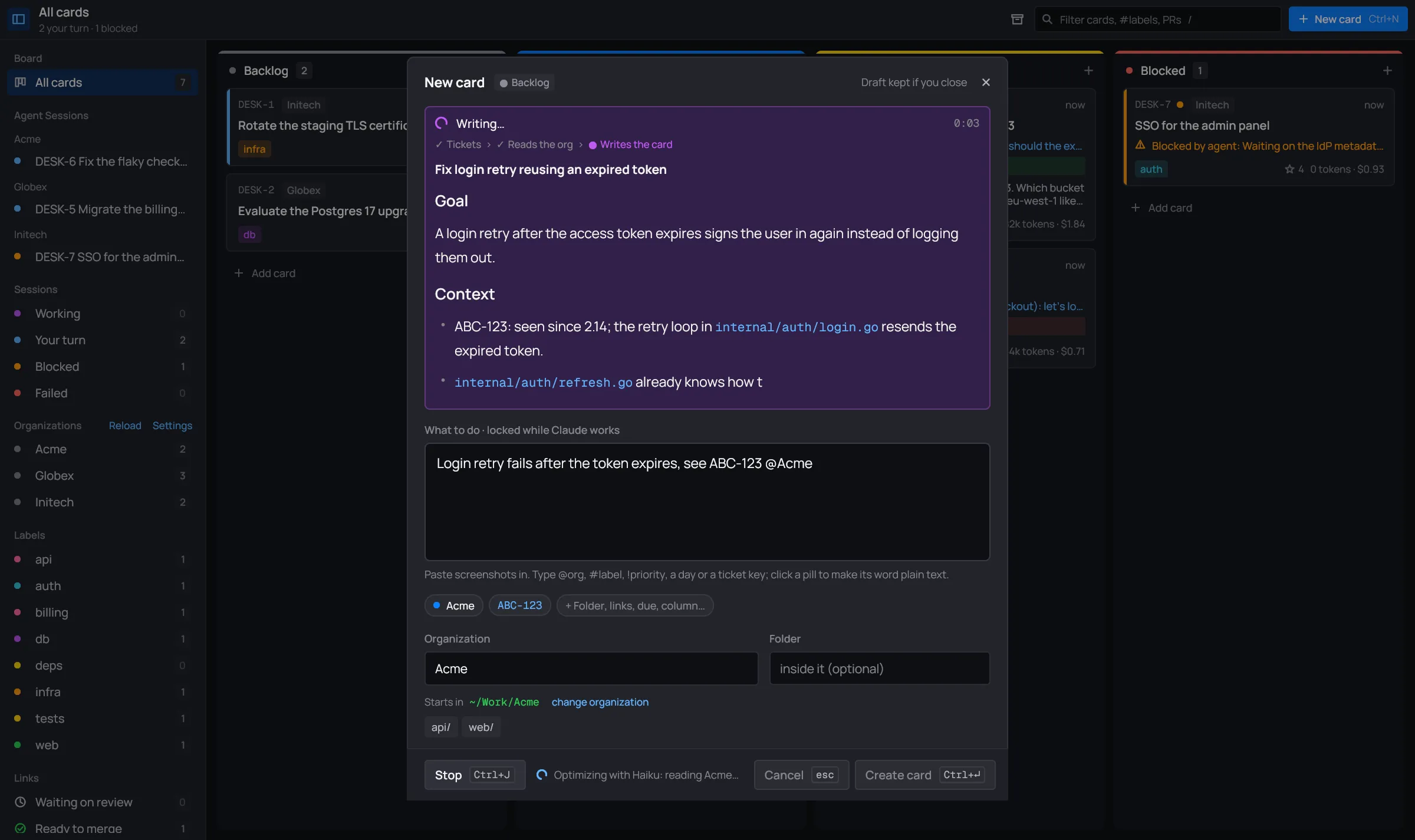
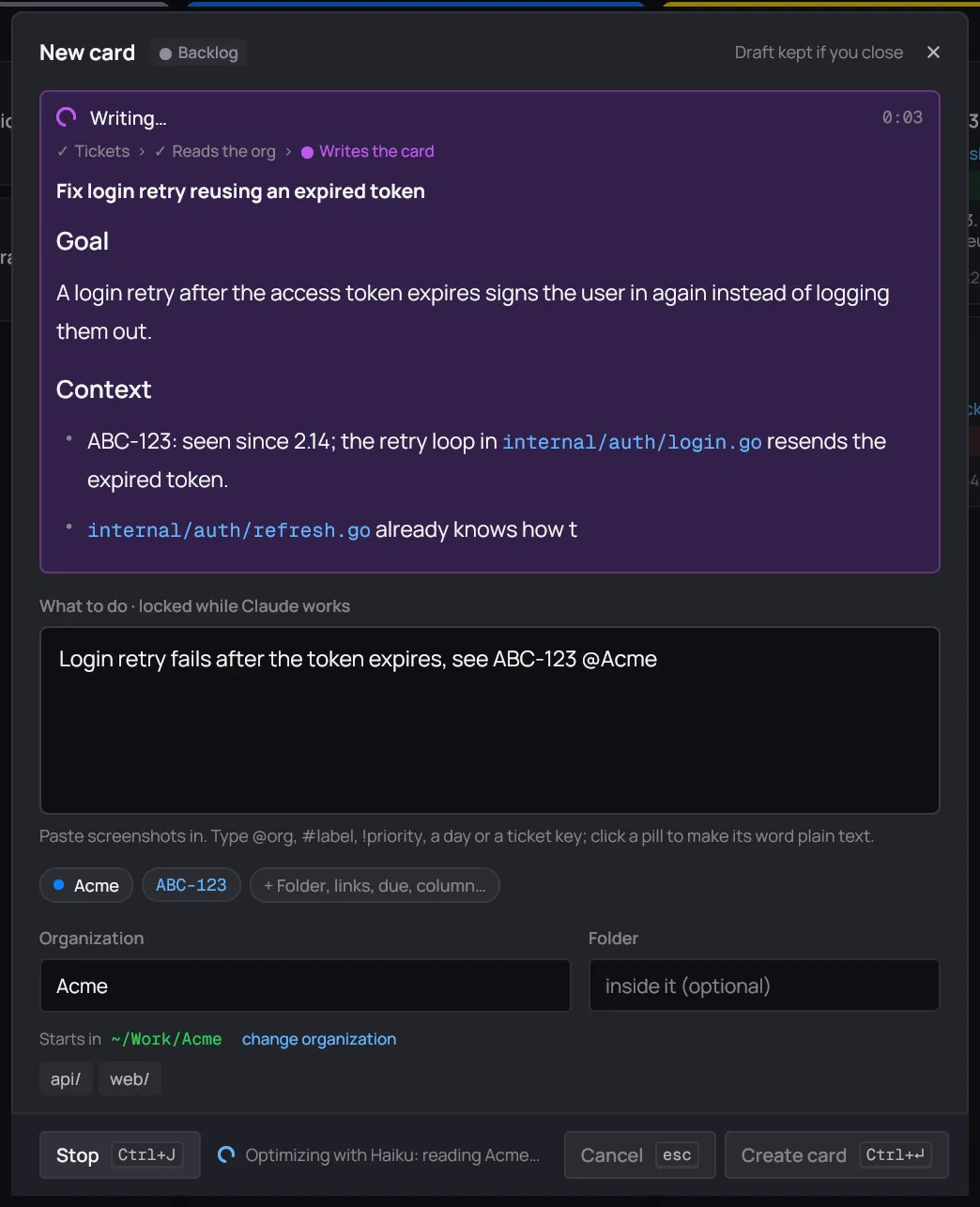
- The stages: Tickets (only when your text names some), Reads the org, Writes the card.
- The title and brief show up as Haiku writes them, so there’s something to read before it ends.
- The fields are locked while it works (“What to do · locked while Claude works”), and so are Cancel and Create card. The button turns into Stop (Ctrl+J again). You can’t close the dialog until it ends or you stop it.
If it fails, the dialog says why, and your text is as you left it.
What it fills
Section titled “What it fills”| Field | What Haiku does |
|---|---|
| Title | writes a new one |
| Notes | your request, worked out into the session’s first message: the goal, the context it found, the steps, when it’s done, and open questions |
| Labels | adds its own, reusing the board’s labels where they fit |
| Links | adds the tickets and pull requests it found |
| Priority, Folder, Due | sets them only where you left them empty |
A screenshot you pasted stays in the notes.
Look it over
Section titled “Look it over”
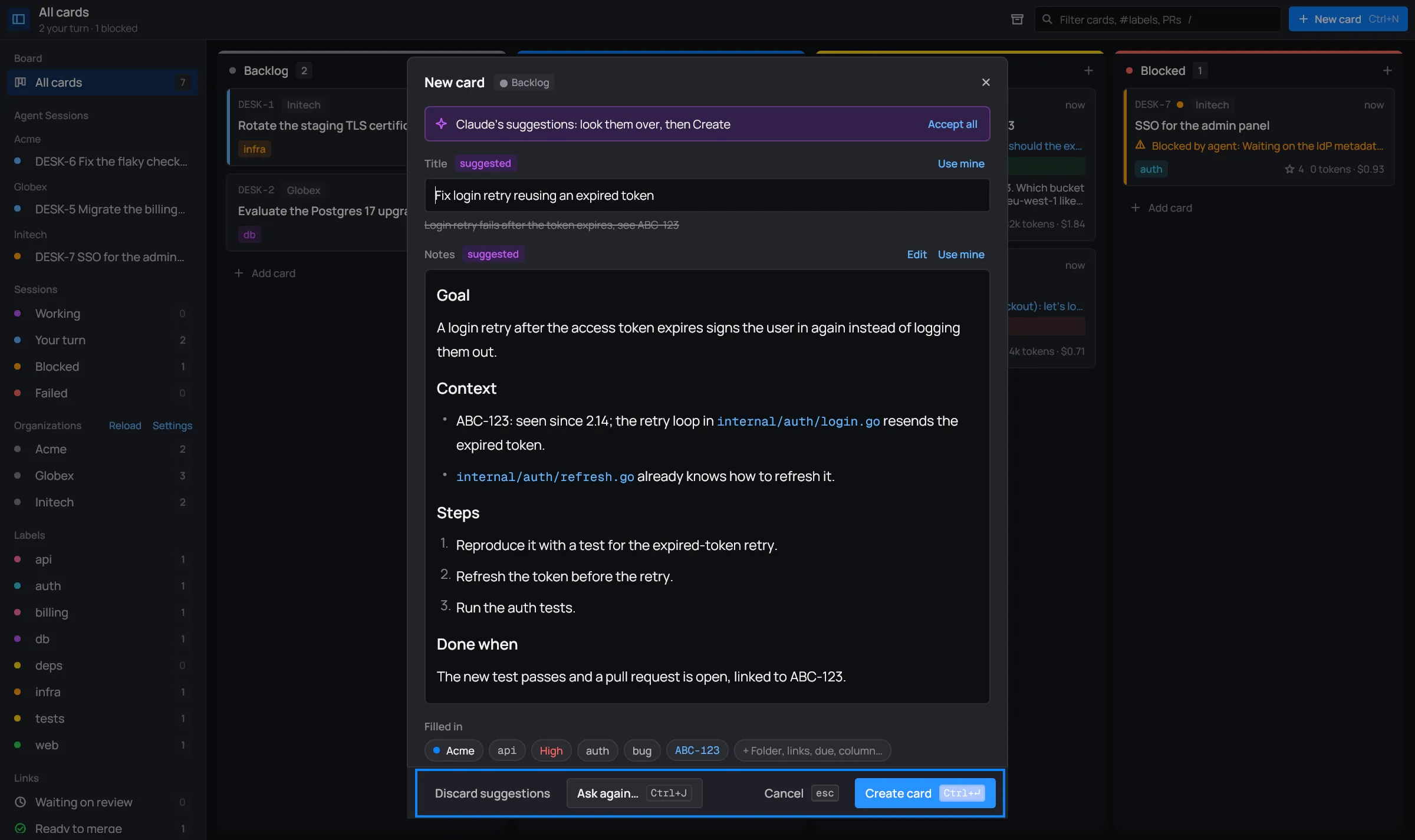
The title and notes are marked suggested. Your own title shows under the new one, struck through, so you can compare. Edit anything before you create the card.

- Accept all removes the suggested marks.
- Use mine, beside Title, puts back the title from your own words. Beside Notes, it puts back your request.
- The notes show as they read (Markdown). Edit switches to their text, and Preview back.
The fields it filled show as pills under the notes, under Filled in. Click one to see every field.
Ask again, or discard
Section titled “Ask again, or discard”
- Ask again… (Ctrl+J) runs it again on what the dialog holds now, your edits included.
- Discard suggestions goes back to your request as you wrote it, ready to create as it is or to improve again.