
Panes
A pane is a real terminal running ssh to one server. You type in it, and so does the tab’s
infra Claude. The output stays: every command becomes a numbered block.
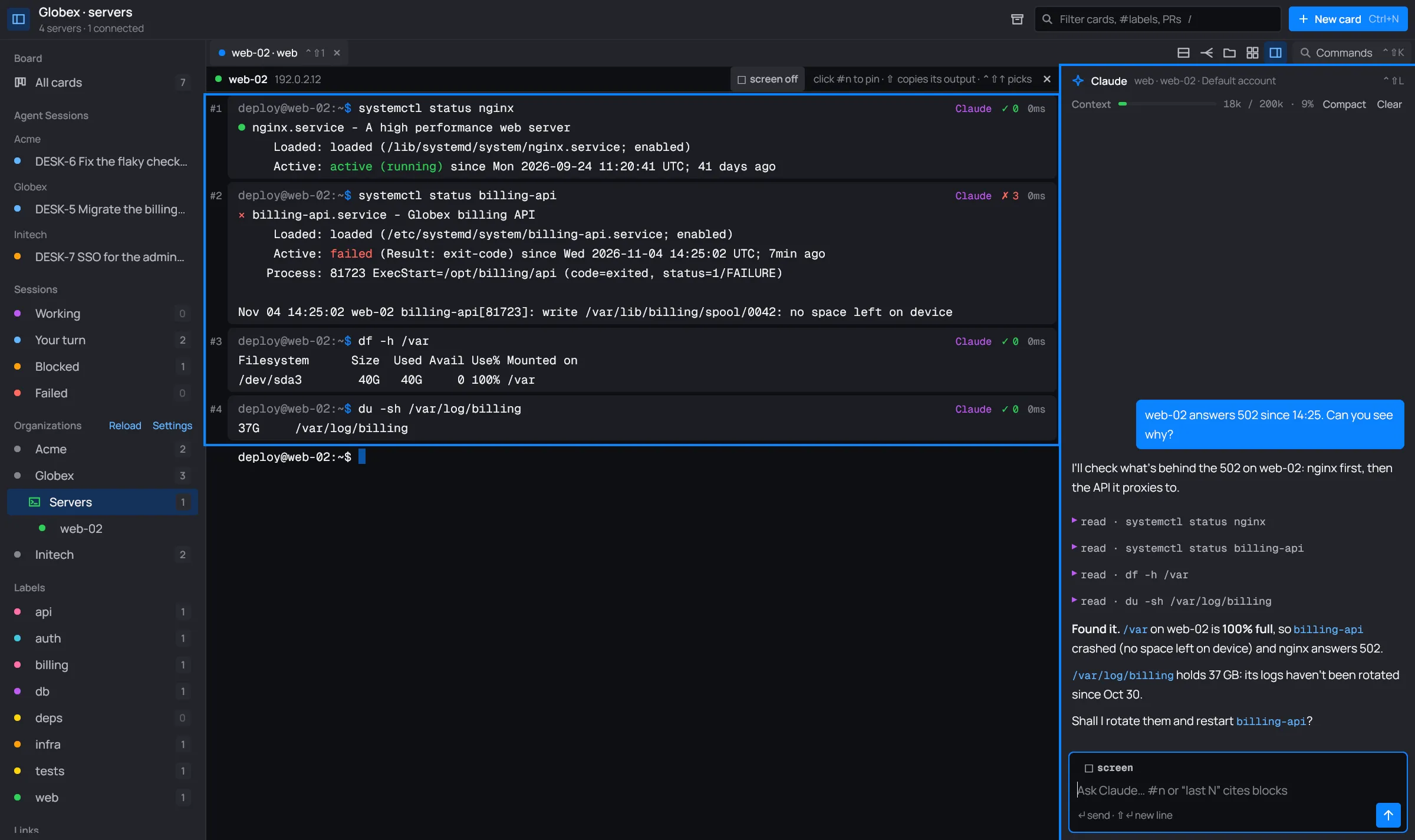
The pane’s header
Section titled “The pane’s header”
- The dot is green once the server answered, orange while it hasn’t.
- A Claude pill means Claude opened this pane. A typing into every pane pill means broadcast is on.
- The screen toggle (on the focused pane) decides whether Claude gets a snapshot of the
screen with your question:
- screen off: only when it looks needed (see What Claude sees).
- screen: with the next question. Ctrl+Shift+S does the same.
- screen auto: shown while a full-screen program (
htop,vim,less…) runs; the screen goes along by itself.
- × closes the pane, like Ctrl+Shift+W.
More panes
Section titled “More panes”Ctrl+Shift+T, or the toolbar’s first button, opens another pane on the focused pane’s server, in the same tab. Panes stack top to bottom.
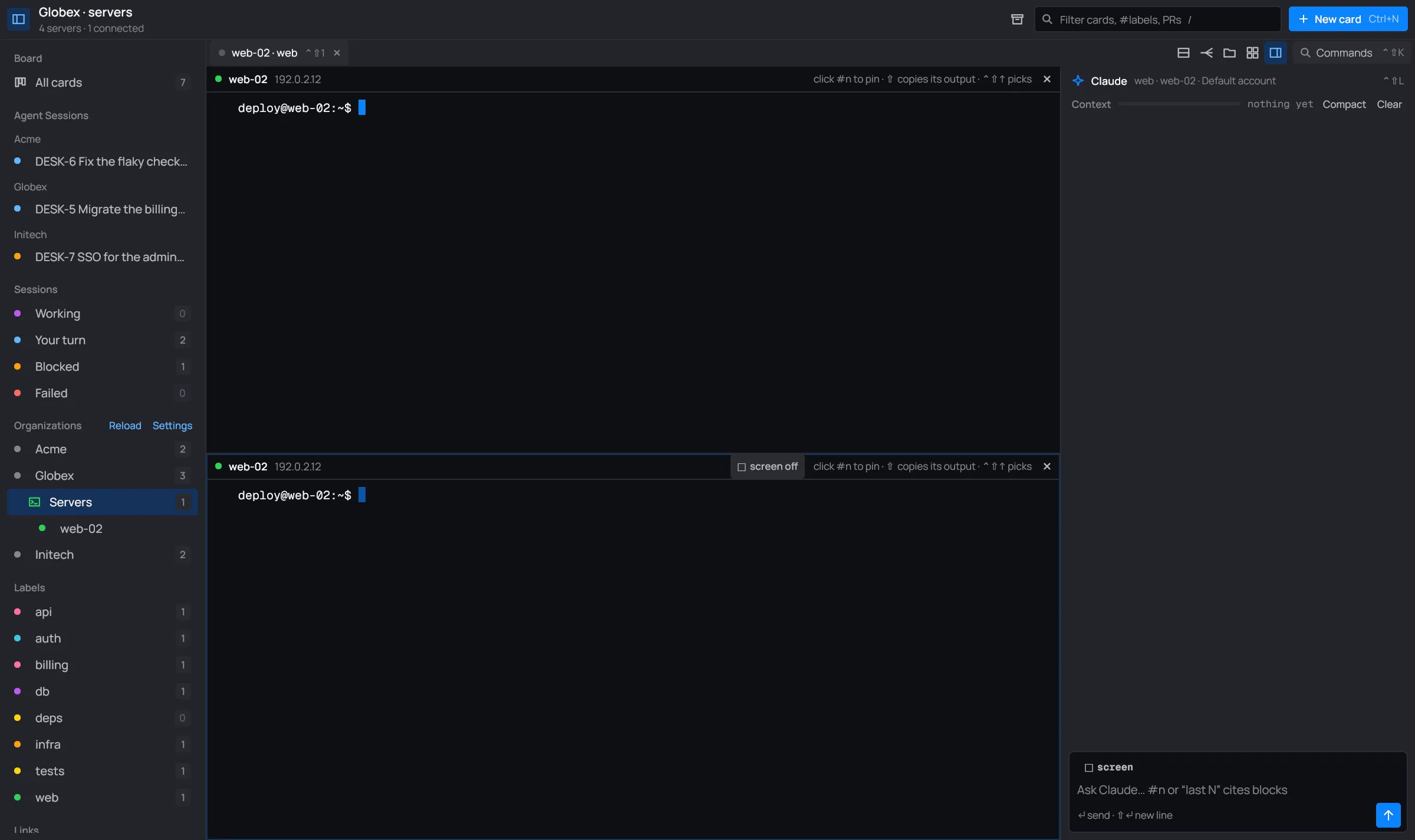
- All panes of a server share one SSH connection (OpenSSH’s ControlMaster), so a new pane opens at once, with no second login.
- Click a pane to focus it. With more than one, the focused pane has an accent outline.
- Ctrl+Shift+W closes the focused pane. On a tab’s last pane it closes the tab.
- Claude can open panes too (for a long-running command while it checks something else). It can close only the panes it opened.
Command blocks
Section titled “Command blocks”desk adds a small shell integration to bash, zsh and fish when the first prompt shows. From then on each command you or Claude run becomes a block, numbered from #1 in the gutter:
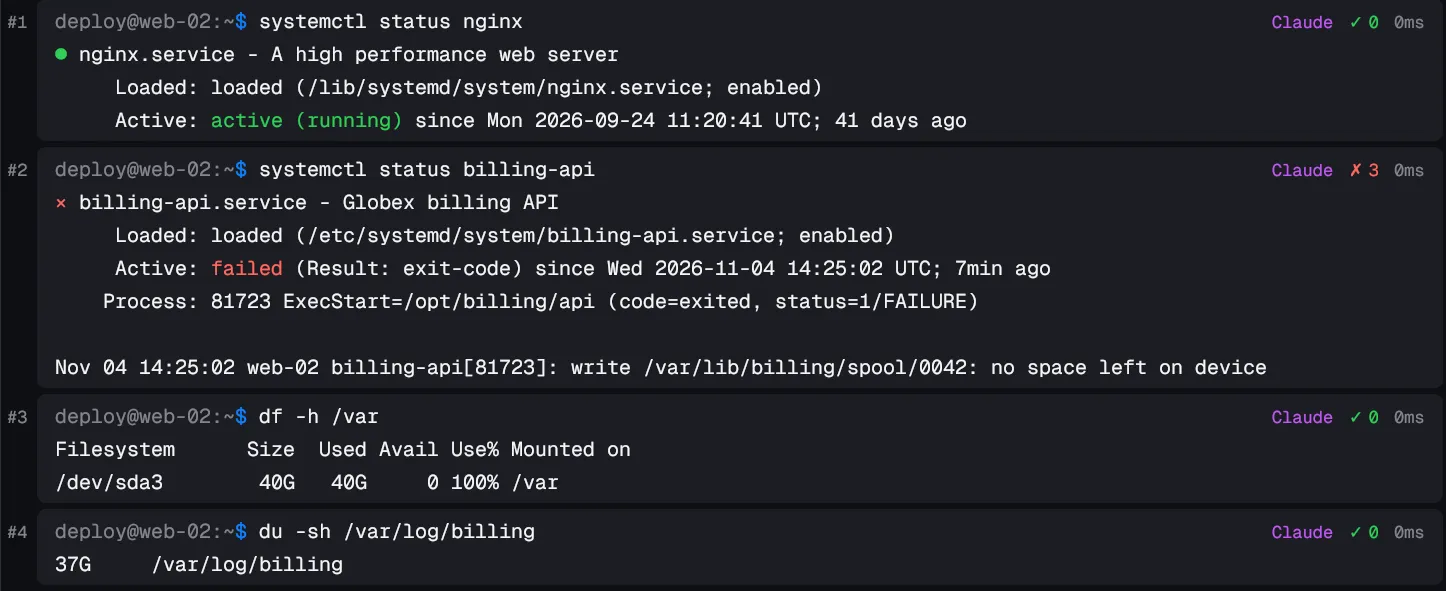
- The badges on the right show the duration, ✓ 0 or ✗ and the exit code, Claude when Claude ran it, pinned when you pinned it, and running while it runs.
- Click #n to pin the block: it goes to Claude with your next question. Click again to unpin.
- ⇧+click #n copies the block’s output (“Copied the output of #n”).
- Ctrl+Shift+↑ and ↓ pick a block from the keyboard.
The header then reads “block #n · space pins · y copies · ↑↓ · esc”:
- Space pins it, Y copies it, ↑/↓ move to the next one.
- Esc or Enter stops picking. Any other key stops and goes to the shell.
Every finished block is also written to the audit log.
What Claude sees
Section titled “What Claude sees”When you ask Claude something, desk sends the blocks you point at:
- The blocks you pinned.
- Any
#nin your question (“why did #3 fail?”). - “last N” in your question (“look at the last 2”).
- With none of those, the last 3 blocks.
It also sends a snapshot of the screen when you turned screen on, when a full-screen program
is running, or when your question mentions the screen, a snapshot, top or htop.
Scrollback, find and copy
Section titled “Scrollback, find and copy”- Each pane keeps 10,000 lines of scrollback. The mouse wheel scrolls it, unless a full-screen program asked for the mouse.
- Ctrl+Shift+H opens Find in scrollback, with the same fzf syntax as the board. Typing jumps to the newest match; ↵ goes to the next older one; esc closes. It shows “N of M”, “no matches” or “type to search”.
- Drag to select: it’s copied when you let go (“Copied”).
- Double-click selects a word (a path, a URL or a
host:portcounts as one word); triple-click selects the line. - Ctrl+Shift+C copies the selection and Ctrl+Shift+V pastes.
Resizing
Section titled “Resizing”Make the window, the Claude panel or a pane bigger or smaller and the terminal follows: the server gets the new size, and lines rewrap to the new width, with the blocks and prompts moving along with them. Text from a restored session or a reconnect is rewrapped at the pane’s width too.
Broadcast
Section titled “Broadcast”The toolbar’s second button (the fan) types into every pane of the tab at once: keys and paste go to all of them. It’s for running the same thing on several panes of a server side by side.

- It needs two or more panes (“broadcast needs two or more panes”).
- While it’s on, each pane has an orange outline and the pill typing into every pane.
- Click the button again, or pick broadcast typing to all panes in the palette, to stop.
The connection box
Section titled “The connection box”While a pane’s connection isn’t up, a box over it says what’s going on and what you can do.
Not answering yet
Section titled “Not answering yet”If the server hasn’t answered after 10 seconds:
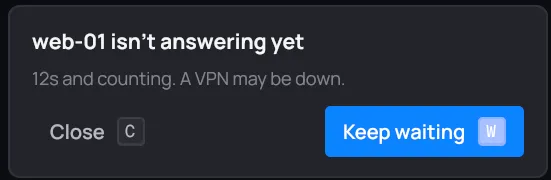
- Keep waiting (W or Enter) gives it another 10 seconds.
- Close (C or Esc) closes the pane.
Couldn’t connect
Section titled “Couldn’t connect”When ssh ends before the server answered:
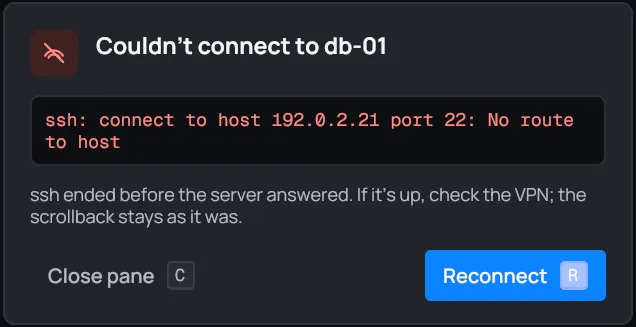
- The box shows ssh’s last line and “Tried N times” when desk retried.
- Reconnect (R) tries again. The scrollback stays as it was.
- Close pane (C) closes it.
- Fix algorithms (F) shows up when the server offers only algorithms modern ssh turned off. It adds them to that host in its ssh_config and reconnects.
- When the server’s host key changed, the box shows both keys instead. See A changed host key.
Reconnecting
Section titled “Reconnecting”A link that drops after it was up (a laptop asleep, a VPN down) comes back on its own:
- The pane’s text gets “── connection lost at 14:32:07, reconnecting ──”.
- The box reads “Reconnecting to web-01…”, with how long ago it dropped and when the next try is. Retry now (R) doesn’t wait.
- desk retries every 2 seconds at first, backing off to 30, for 5 minutes. Then it shows Couldn’t connect.
- Port forwards on that server come back once it’s up again.
Passwords for ssh
Section titled “Passwords for ssh”desk is ssh’s password helper (SSH_ASKPASS). On the first password prompt it answers from the
vault when the server has a #@ password.
Otherwise, or for any other question ssh asks, a box asks you: “ssh web-01 asks”, with “Sent to
this ssh session only, not stored.” Your answer goes to that ssh only.
If the vault is locked, desk asks for its password first (“Unlock …”). That password is kept in memory only.
sudo passwords
Section titled “sudo passwords”When a pane waits at a password prompt (sudo, doas, su, “Password:”), a bar above the
prompt reads “Asks for deploy’s password” with Type server password
(Ctrl+Shift+P).
- It types the server’s password from its
#@ password(orpassword-raw) straight into the prompt: “sudo password sent”. - With no prompt waiting, the same key copies the password instead: “server password copied”.
- With no password set for the server, the bar says so (“no #@ password for this server”).
Wake-on-LAN
Section titled “Wake-on-LAN”A server with #@ wol gets a magic packet each time a pane
opens on it, just before ssh starts. desk doesn’t wait for it to boot: if the pane says the
server isn’t answering yet, Keep waiting.
Recordings
Section titled “Recordings”Every pane is recorded, from connect to close, as an asciicast file you can play back:
asciinema play ~/.local/state/desk/infra/recordings/Globex/2026-11-04-143207-web-02.cast- One file per pane and connection, in
~/.local/state/desk/infra/recordings/<Org>/, named by the date, time and server. - They’re kept 7 days, and at most 1 GiB per organization; older ones go first.
- Open recordings in the palette opens the folder.
- To turn recording off for an organization, put
record = falseat the top of itsdesk.toml.