
The infra workspace
An organization with a servers file gets a Servers row under it in the sidebar. Click it to open the organization’s infra workspace: session tabs, live SSH panes and the organization’s infra Claude beside them. The Claude runs commands in the same terminals you type in, and every change waits for your approval.
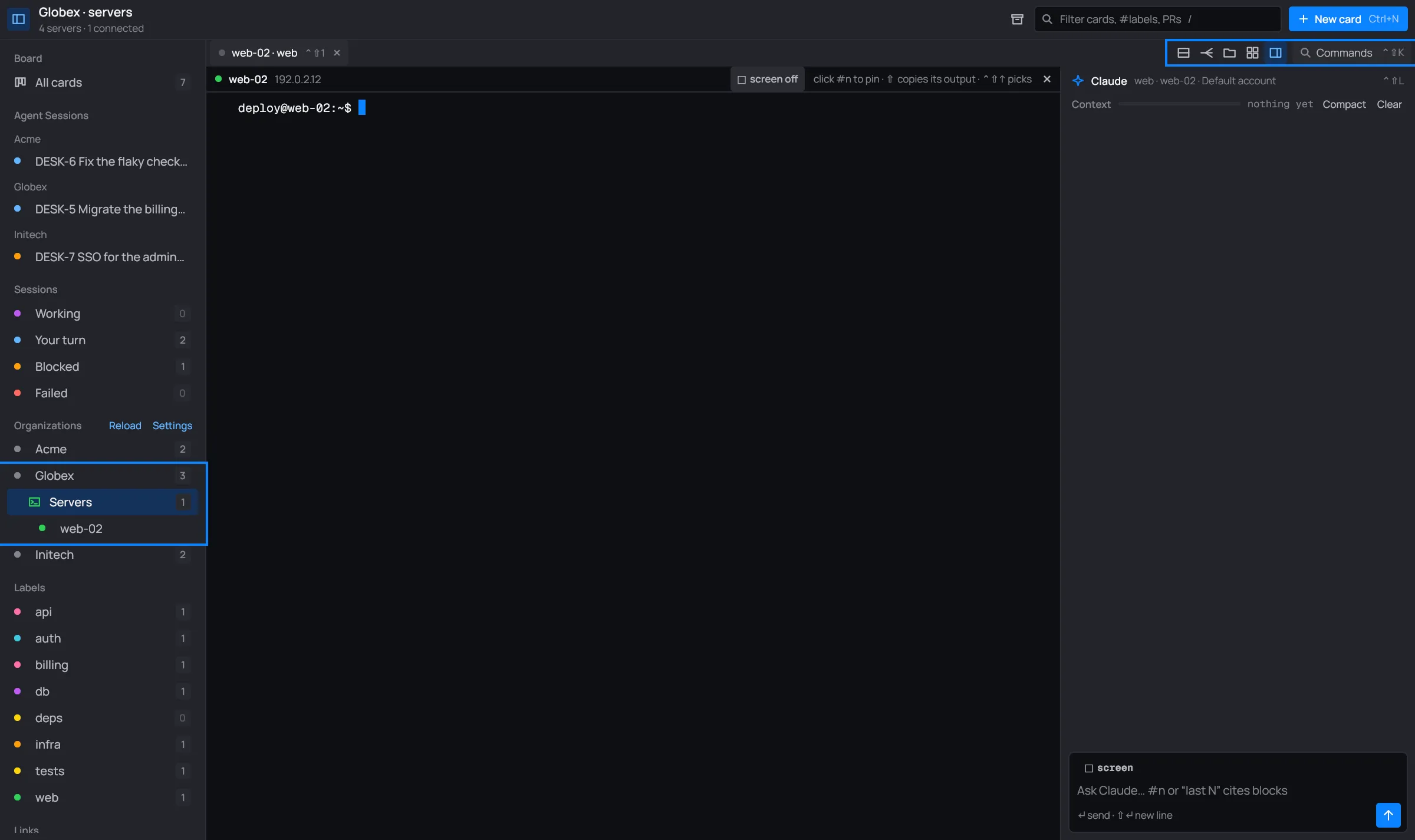
The header reads like the board’s: the organization, then a sentence about its servers (“4 servers · 1 connected”, “1 waiting”, “1 with Claude”, “1 with an alert”).
In the sidebar
Section titled “In the sidebar”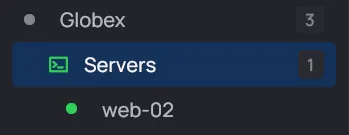
- Servers opens the workspace. Its dot is the worst state among the organization’s servers.
- Under it, the rows that have a session: the organization’s own Claude (Globex Claude) and each connected server. A click goes back to that session.
- Each dot tells you the server’s state:
- Green: a pane is connected.
- Purple: its Claude is on a turn.
- Orange: still connecting, or a command waits for your approval.
- Red: Nagios has an alert on it.
- Grey: no session.
Every server: the picker
Section titled “Every server: the picker”Double-click Servers to see all the organization’s servers, grouped as in its servers file, with the organization’s own Claude first.
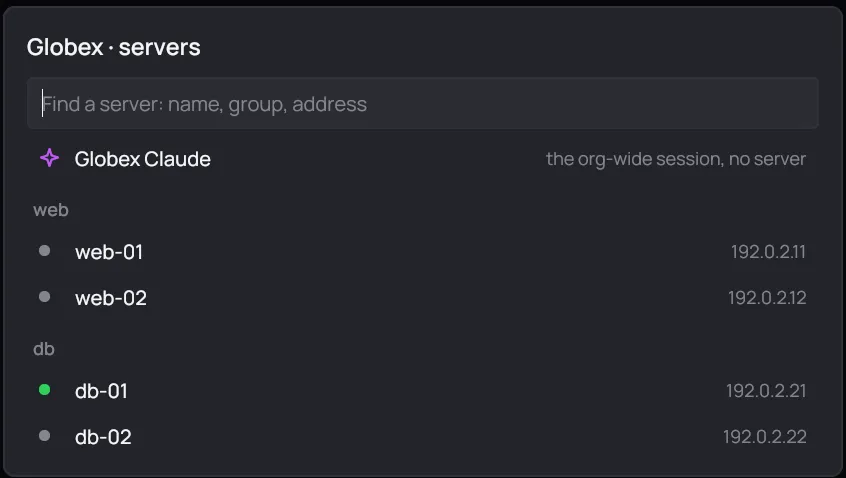
The search uses the same fzf syntax as the board. A click opens the server’s session, or goes to it if it’s already open. A click outside closes the picker.
Pick Globex Claude for the organization-wide session: a Claude with no terminal yet, which connects to the servers you ask it about.
Session tabs
Section titled “Session tabs”
- Opening a server makes a tab named after the server and its group (web-02 · web), with one pane on that server and a Claude of its own.
- The organization’s own session is a tab named after the organization.
- Only the tabs of the organization on screen show. Switching organizations brings back the tab you last used there.
- Ctrl+Shift+1 to 9 go to the first nine tabs.
- The dot before the name shows the tab’s state:
- Orange: an approval waits.
- Purple: Claude is working.
- Blue: your turn.
- Grey: idle.
- The × closes the tab. That hangs up its panes, stops its Claude and denies any approval still waiting.
- A server tab whose last pane ends (you typed
exit) closes by itself.
Your sessions survive a restart: tabs, panes, their text and command blocks, the working directory, the conversation and Claude’s session all come back.
The toolbar
Section titled “The toolbar”
From left to right:
| Button | What it does | Key |
|---|---|---|
| New pane | Another pane on the focused pane’s server. See Panes. | Ctrl+Shift+T |
| Broadcast | Type into every pane of the tab at once. | |
| Directory | The directory split: this server’s files beside this machine’s. | Ctrl+Shift+F |
| Group view | Every session of the group on one page. | Ctrl+Shift+G |
| Claude panel | Shows or hides the Claude panel. | Ctrl+Shift+J |
| Commands | The palette. | Ctrl+Shift+K |
Panes and command blocks
Section titled “Panes and command blocks”Each pane is a live SSH terminal. Every command you or Claude run becomes a numbered block: the command, its output, its exit code and how long it took.
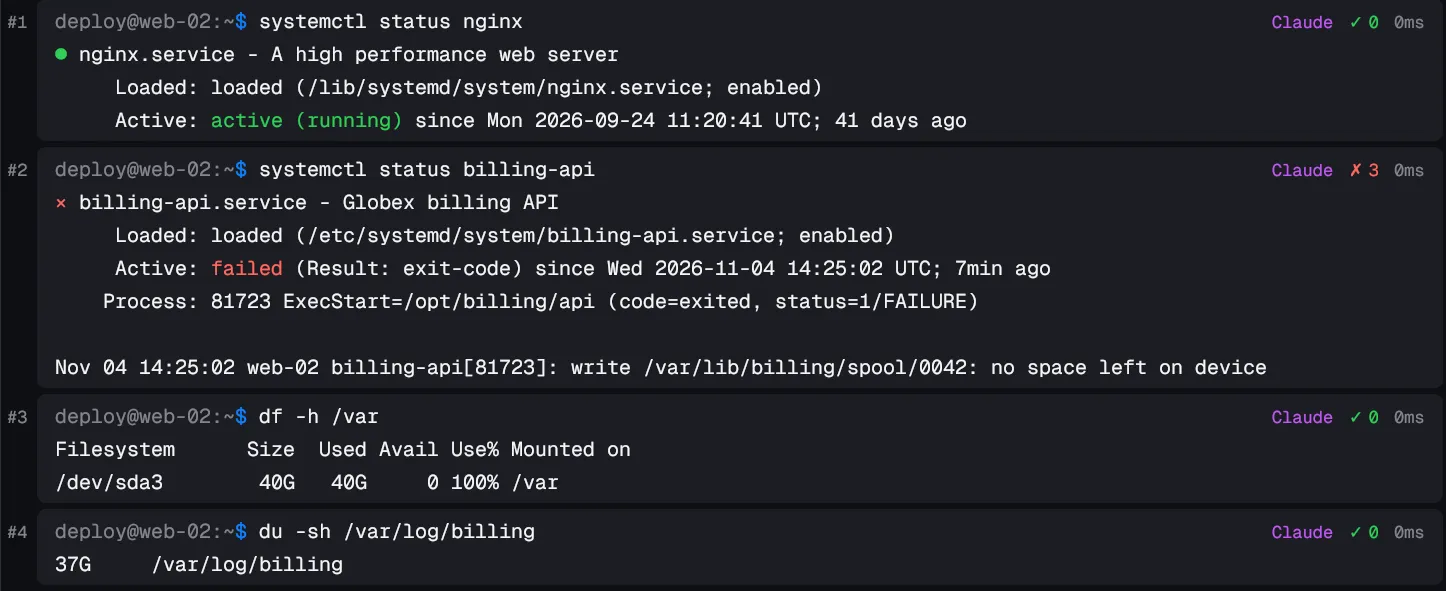
You point Claude at blocks by number. Panes explains blocks, splits and the connection box.
The Claude panel
Section titled “The Claude panel”The panel on the right is the tab’s infra Claude.
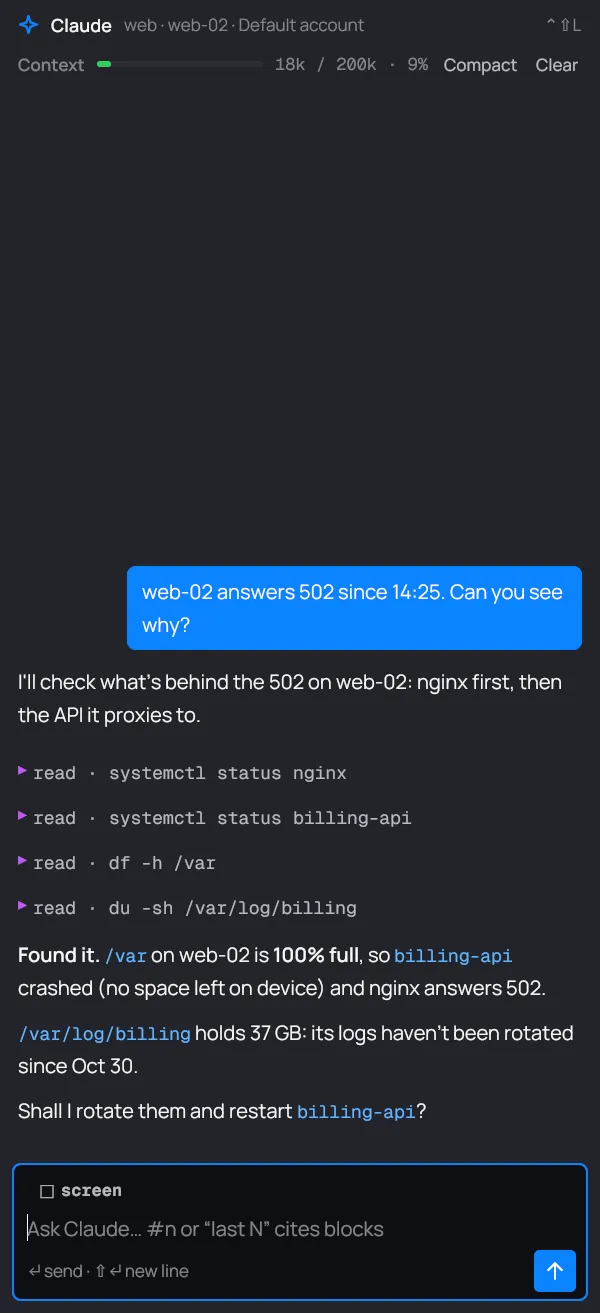
- The header says which session it is (“web · web-02 · Default account”), then the Context meter with Compact and Clear.
- Drag its left edge to make it wider or narrower (300 to 800 dp). desk remembers the width.
- The composer is at the bottom: ↵ sends, ⇧↵ starts a new line. Ctrl+Shift+L jumps to it, and again back to the terminal.
The infra Claude covers what it can do and how approvals work.
Group view
Section titled “Group view”Ctrl+Shift+G (or the grid button) shows every open session of the current tab’s group as a card. Each card shows what you last asked, Claude’s answer and its last four commands.
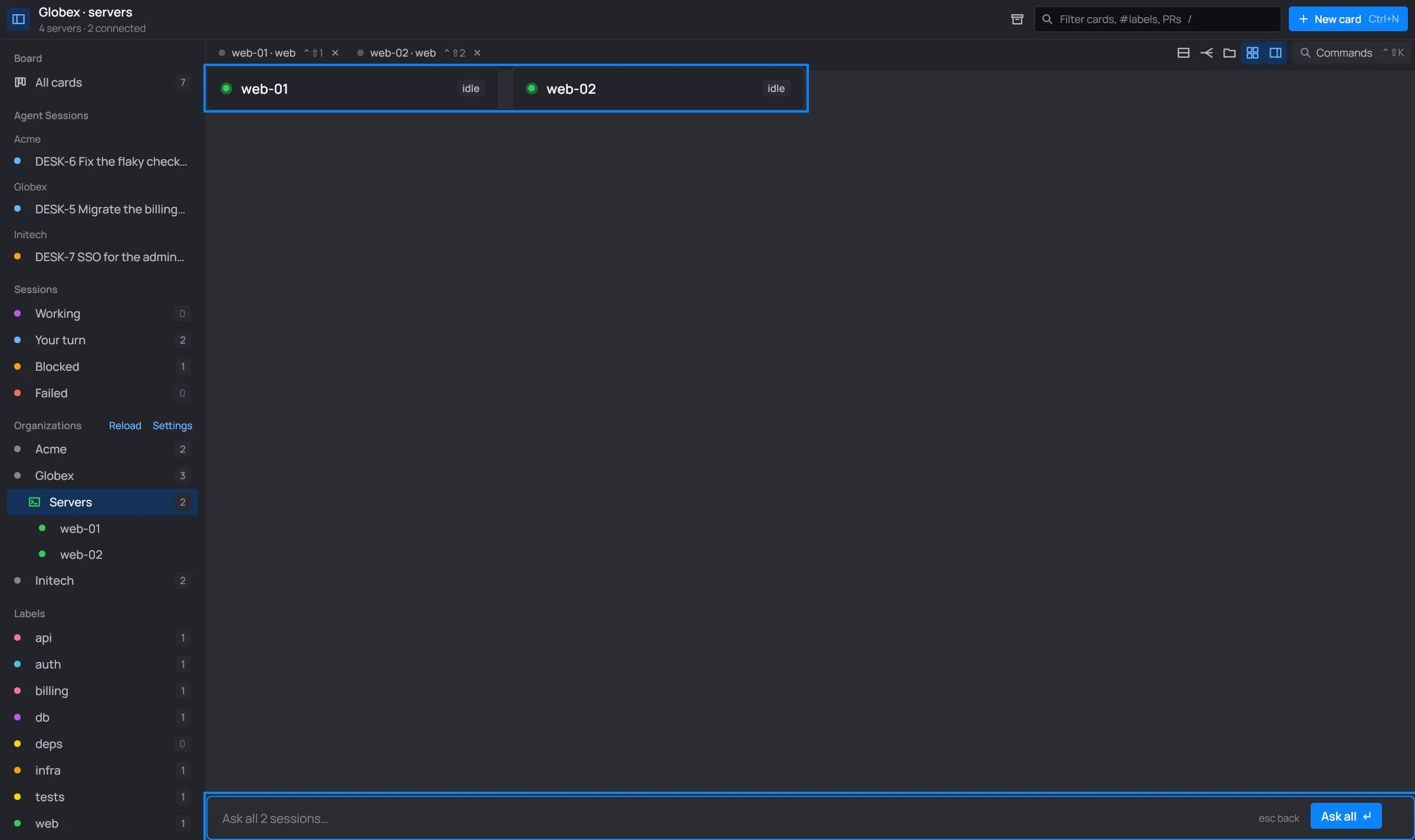
The field at the bottom sends one question to every session of the group: Ask all or ↵. Esc goes back.
| Keys | What they do |
|---|---|
| Ctrl+Shift+K | The palette |
| Ctrl+Shift+T | A new pane on the focused pane’s server |
| Ctrl+Shift+W | Close the focused pane (the tab, on its last pane) |
| Ctrl+Shift+J | Show or hide the Claude panel |
| Ctrl+Shift+L | The Claude composer, or back to the terminal |
| Ctrl+Shift+G | Group view |
| Ctrl+Shift+F | The directory split |
| Ctrl+Shift+H | Find in the scrollback |
| Ctrl+Shift+↑ / ↓ | Pick a command block |
| Ctrl+Shift+S | Send the screen with the next question |
| Ctrl+Shift+Y | Type the command Claude suggested at the prompt, without running it |
| Ctrl+Shift+P | The server’s password: into a waiting sudo prompt, or else copied |
| Ctrl+Shift+C / V | Copy the selection / paste |
| Ctrl+Shift+1…9 | Go to that tab |
On macOS these are ⌘ and the letter. desk’s own board keys stay off while you’re in Servers: the panes and these shortcuts take the keyboard.