
The session panel
Every card is a Claude Code session. To open it, click the card, or select it and press Enter. Its panel opens on the right, beside the board. The panel holds the conversation so far, the card’s links, and a box for messages to Claude.
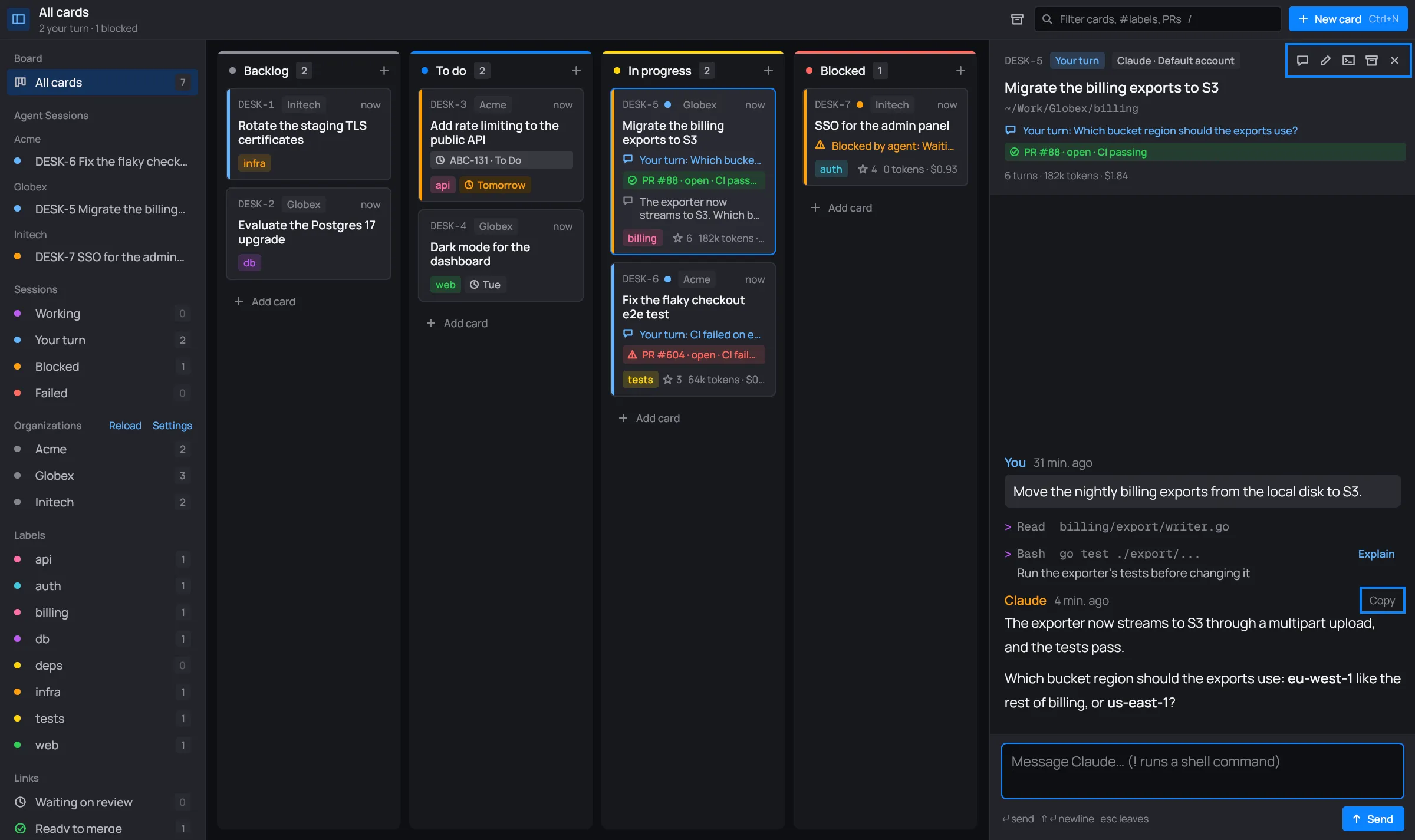
Press Esc or the × to close the panel. The session keeps running.
The header
Section titled “The header”The header names the card. It shows the card’s key, its status, the account the session runs under, its title and folder, the status line, the links, and the session’s figures so far.
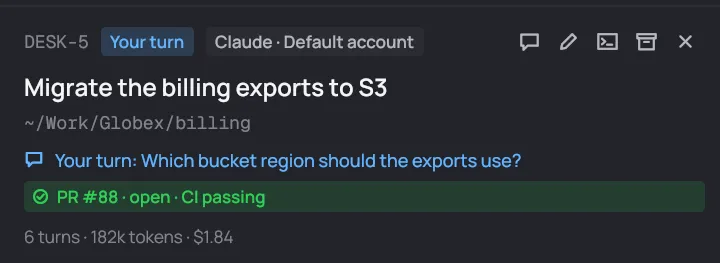
- Claude · <account> is the Claude account the session runs under. It is the organization’s account (see Accounts). Every view of a session names it: the panel, the full window and the terminal.
- The folder is where Claude works:
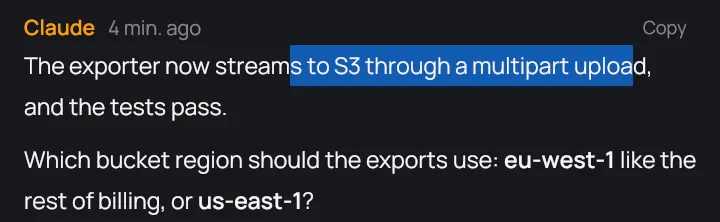
<Org>/<folder>, shown from your home as~/…. Claude runs there with--permission-mode auto. The organization’s own folder is added too, so its.claude/skillsload. - The status line says why the card is where it is, for example “Your turn: Which bucket region should the exports use?”.
- Link chips show each link with its live state. Click one to open it in your browser. Artifacts the session publishes are listed under the links, as “Artifact … · open in the browser”.
- Turns, tokens and cost of the session so far. See Tokens, cost and limits.
The icons at the right end act on the card:

The full window shows the same session over the whole window. The terminal opens it in the full Claude Code TUI.
Starting a session
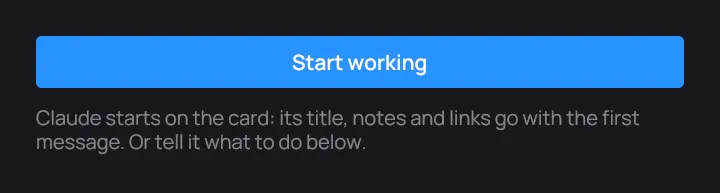
Section titled “Starting a session”A card that never had a session shows Start working. Click it and Claude starts on the card: its title, notes and links go with the first message. You can also type what to do in the box below instead.
The conversation
Section titled “The conversation”The conversation reads top to bottom, newest last. It holds your messages, Claude’s replies and a line for every tool Claude uses.

>. A shell command also says, in Claude’s words, what it does.A tool line names the tool and its most telling input: the file read, the pattern searched, the command run. A shell command adds Claude’s plain description of it, and Explain has Haiku take it apart (see Shell commands). A file change shows as a diff, and a subagent’s work shows in the subagents bar.
Claude’s replies are drawn from their Markdown: headings, lists, tables, quotes, links and code with its highlighting.
Selecting and copying text
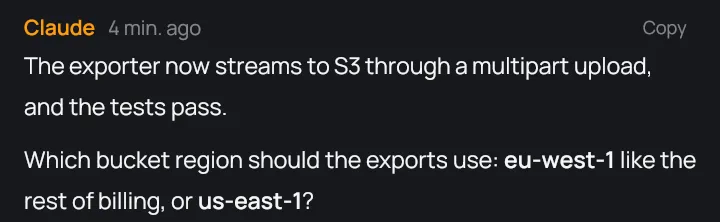
Section titled “Selecting and copying text”- Drag over text to select it. Double-click selects a word, triple-click the whole block. Claude’s replies keep their formatting while you select. What you select in a reply is copied when you let go of the mouse.
- Copy at the end of a reply’s name line copies the whole reply as Markdown.
- A click on a link in a reply opens it, as long as you didn’t select anything.
Status lines
Section titled “Status lines”Claude tells desk how things stand with a line at the end of a reply. desk acts on these lines and hides them, so they never show in the conversation:
| Line | What desk does |
|---|---|
DESK-STATUS: blocked — <reason> |
The card goes to Blocked, with the reason as its status line. |
DESK-STATUS: done |
The card goes to Done. |
DESK-LINK: <url> |
The link is attached to the card and its state checked. |
You don’t write these lines yourself: Claude is told to use them. For example, after Claude opens
a pull request, the reply ends with DESK-LINK: https://github.com/acme-corp/api/pull/612. The
line doesn’t show, and the card gets the pull request’s chip:

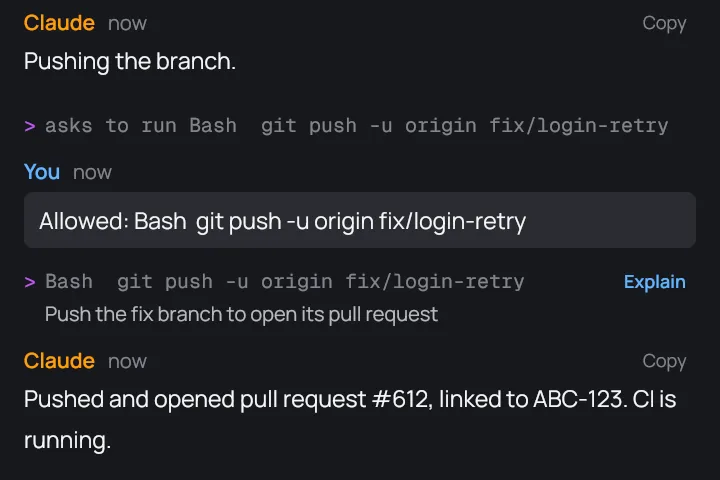
DESK-LINK line is gone.When a turn ends without any of these, the card is your turn.
The message box
Section titled “The message box”Type in the box at the foot of the panel and press Enter or Send. Shift+Enter adds a new line. Esc leaves the box.
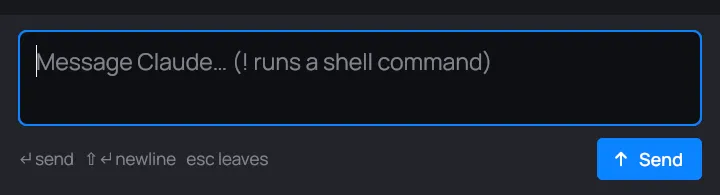
- While Claude works, the box says Claude is working; your message goes next. A Stop button beside Send interrupts the turn.
- A message that starts with
!is a shell command you run yourself. See Shell commands. - Ctrl+V with an image on the clipboard saves it beside the board and puts
in your message. Claude reads the image. - If Claude asked you something, what you type answers it in your own words. See Questions and permissions.
Sending a message moves a card in Backlog, To do or Blocked to In progress.