Quick start
desk saves everything as you go. You don’t need to set anything up before your first card; the steps below say what each one adds.
-
Lay out your work as organizations.
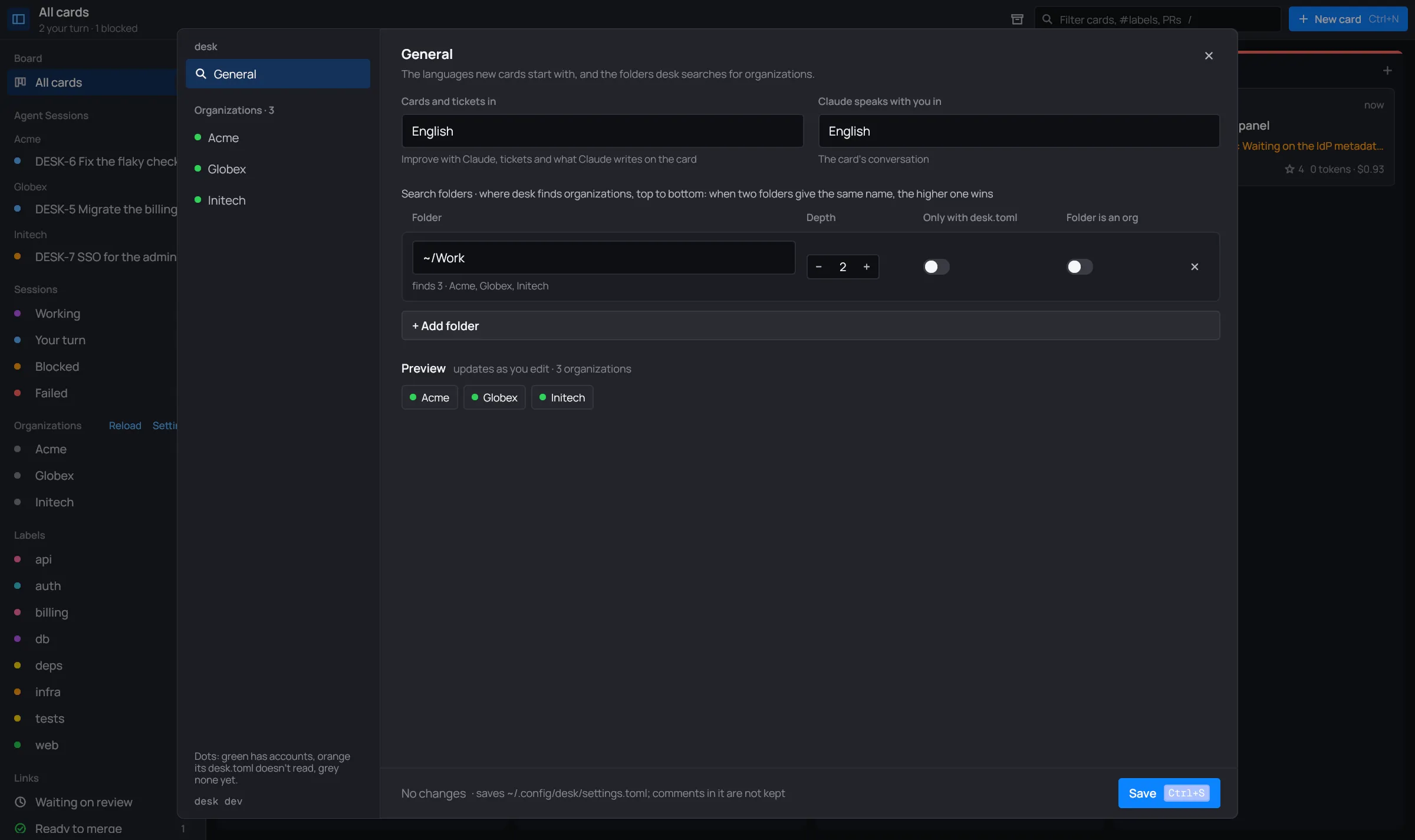
An organization is a folder. By default desk looks in
$DESK_ROOT(~/Workif it isn’t set), two levels down: every subfolder is an organization (~/Work/Acme,~/Work/Globex…), and folders one level deeper count too once they have adesk.toml.Change the folders and how deep desk looks in Settings → General (the sidebar’s Settings, next to Organizations). The same page sets the languages cards are written in and Claude speaks with you in. Both are English until you change them, and each new card can pick its own.
-
Optionally give an organization its own Claude account.
Put a Claude Code profile in
~/Secure/Claudes/<Org>/(for example~/Secure/Claudes/Acme/). That organization’s sessions then run under it, sandboxed withbwrap. Organizations without one use your ownclaudelogin. -
Optionally connect its accounts.
In Settings, pick the organization and add its GitHub, Jira, GitLab, Bitbucket or Nagios accounts, and the vaults their tokens come from. desk then shows the live state of each card’s pull requests and tickets, your assigned tickets, CI and alerts. You can also write them by hand in
<Org>/.desk/desk.toml: see the desk.toml reference.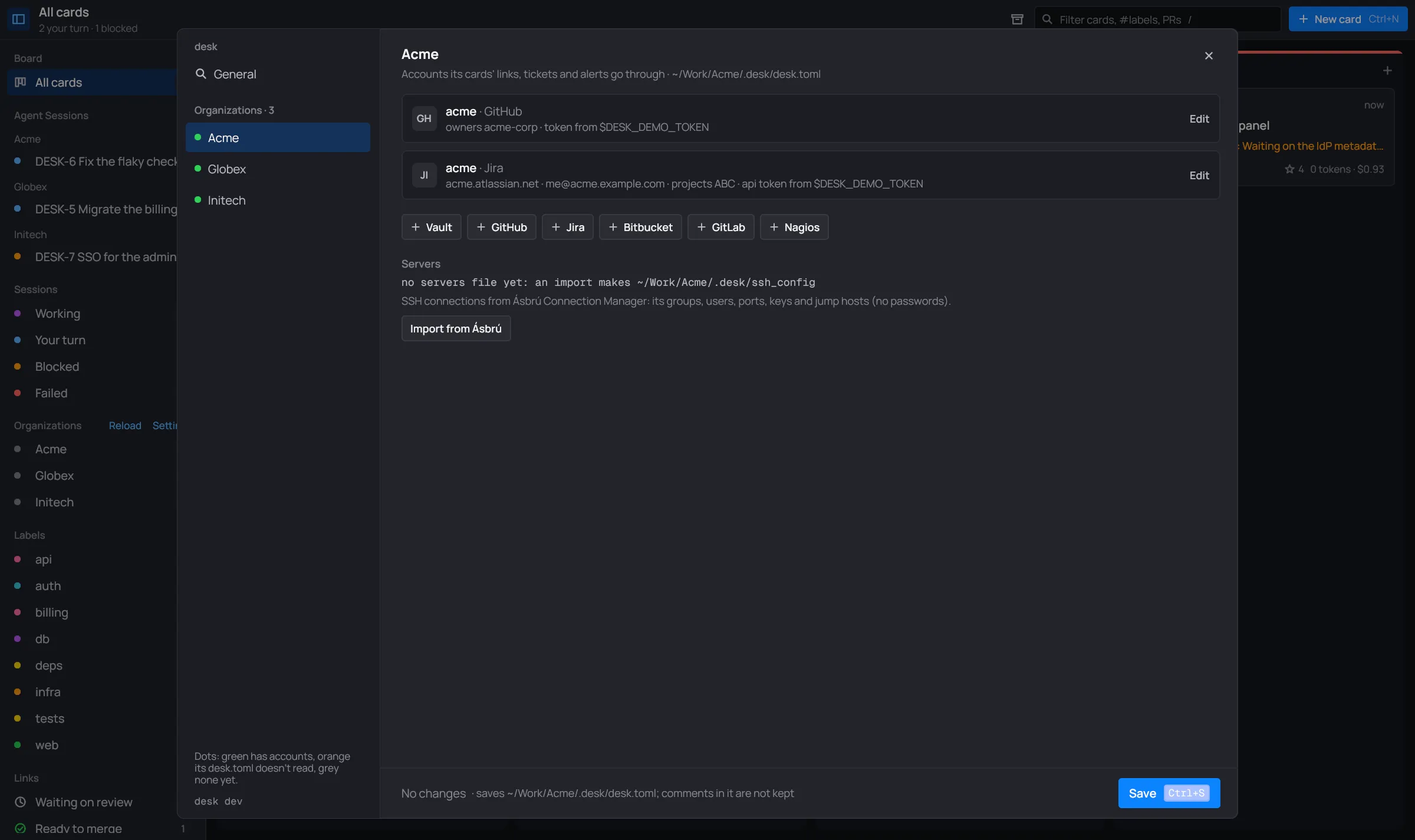
-
Make a card.
Press Ctrl+N (or New card in the toolbar). Say what to do in plain words, as it comes.
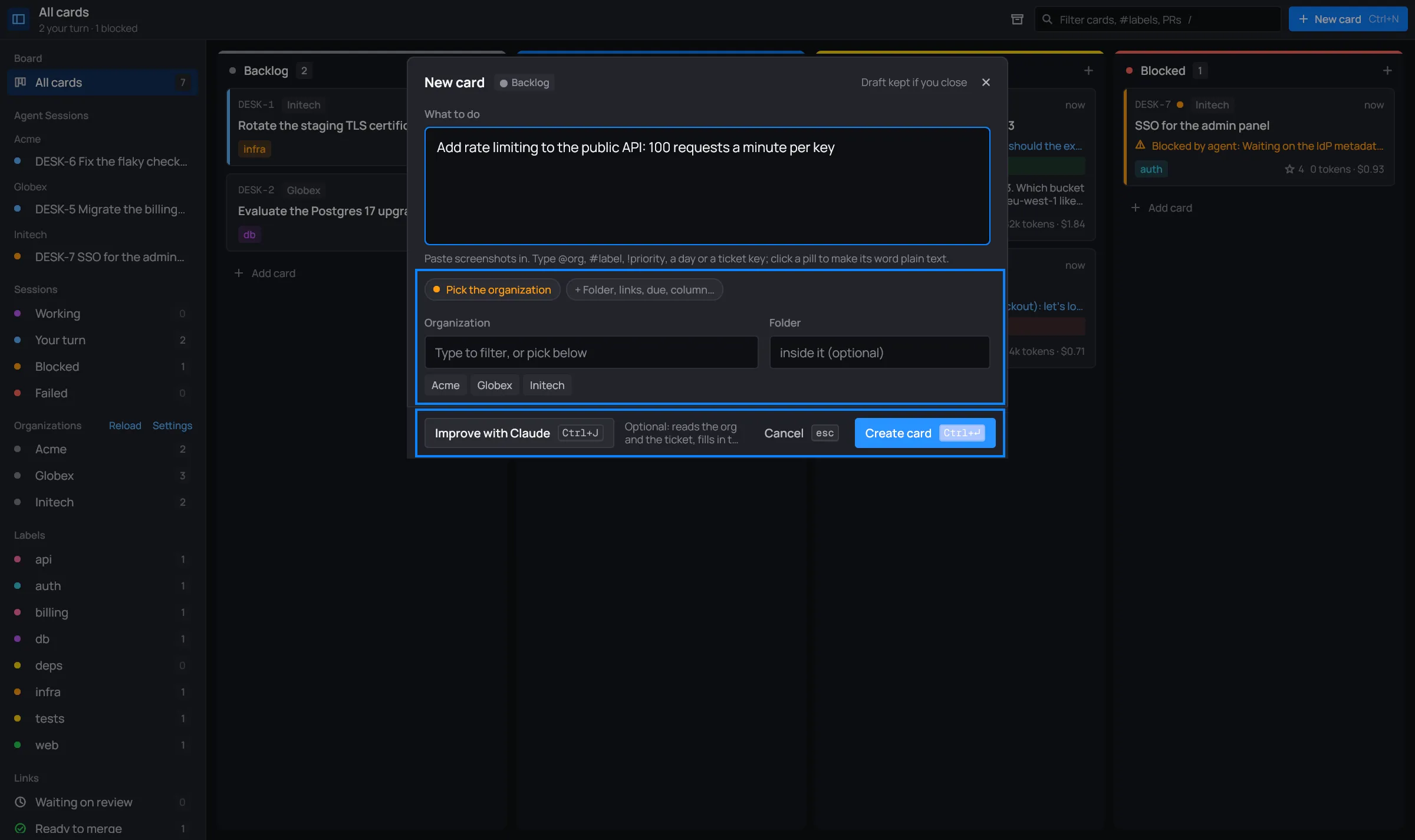
Pick the organization. desk asks for it right in the dialog until you do: type to filter, or click one. The Folder field is optional: a folder inside the organization for the session to start in.
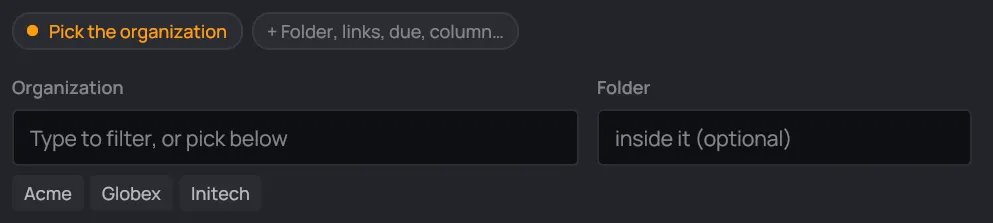
Until you pick one, the pill says “Pick the organization”. Then Improve with Claude (Ctrl+J), if you like. It’s optional: Haiku reads the organization’s folder and the tickets you name, and turns your request into a full brief, with a title, labels, links and the steps. Look it over, then Create card (Ctrl+Enter).

Every button shows its key.
The card’s Claude session starts right away, in the organization’s folder. Its card moves on its own: to In progress while Claude works, to Blocked when it reports blocked, to Done when it’s done. When it needs you, the card says “your turn”.
Where to go next
Section titled “Where to go next”- What each part of the board means: Concepts.
- More on the new-card dialog: New card and Improve with Claude.
- Every shortcut: Keys.