
The editor
A drawing opens in desk’s editor. It works the way Excalidraw does: the same tools, the same keys, the same choices of style.
The tools
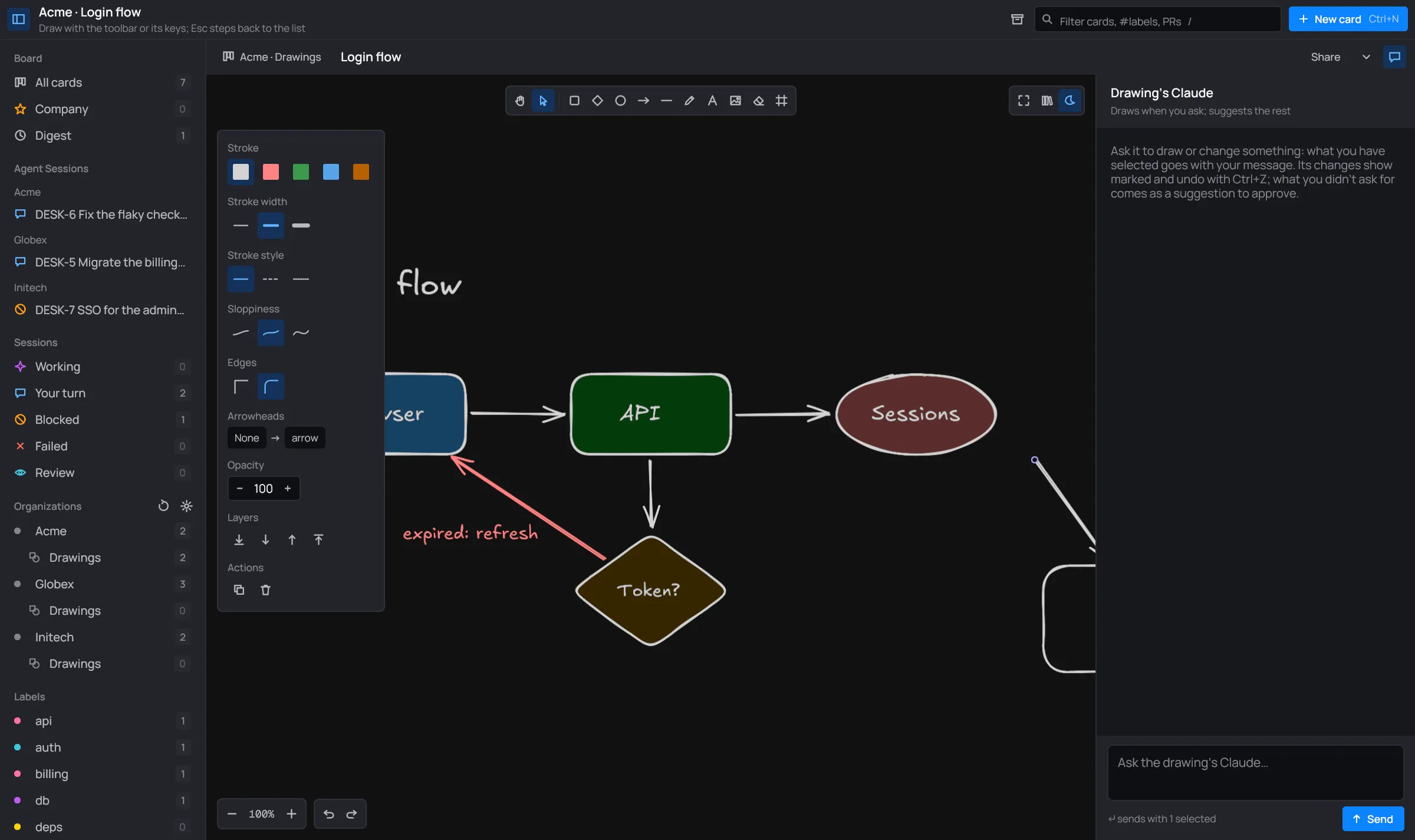
Section titled “The tools”The toolbar sits over the top of the canvas. Each tool has a letter and a number:
| Tool | Keys | What it does |
|---|---|---|
| Hand | H | Drag to move around the drawing. |
| Selection | V or 1 | Click to select, drag to move; drag on empty canvas for a box that selects what’s inside. |
| Rectangle | R or 2 | Drag to draw one. |
| Diamond | D or 3 | |
| Ellipse | O or 4 | |
| Arrow | A or 5 | Drag from one shape to another: its ends stay attached to them when they move. |
| Line | L or 6 | |
| Draw | P or 7 | Free hand. |
| Text | T or 8 | Click and type. |
| Image | 9 | Picks a picture file to put in: see Images. |
| Eraser | E or 0 | Drag across what you want gone. |
| Frame | F | See Frames. |
A selected shape has grips to resize it and a round one above to rotate it. A lone line or arrow has a grip on each of its points instead.
Double-click empty canvas to type text there; double-click a text, or press Enter with it selected, to change it. Text a Claude puts inside a shape (its label) moves and goes with the shape.
Moving around
Section titled “Moving around”Scroll to move around, Ctrl+scroll to zoom where the pointer is (10% to 3000%). Dragging with Space held, or with the middle button, moves too. The buttons at the bottom left zoom, undo and redo. The ones at the top right show it all (Ctrl+1), open the library and switch between the dark and the light canvas (Alt+Shift+D), which is kept with the drawing as excalidraw.com keeps it.
The style panel
Section titled “The style panel”With something selected, or a drawing tool picked, the panel on the left shows the choices that fit it, as Excalidraw does: Stroke and Background colors, Fill (hachure, cross-hatch, solid), Stroke width, Stroke style (solid, dashed, dotted), Sloppiness (from clean to very hand-drawn), Edges (sharp or round), Arrowheads, for text its Font family, Font size and Text align, and Opacity. Layers brings it forward or back, and Actions duplicates or deletes it. A choice made with a tool picked is used for what you draw next.
Frames
Section titled “Frames”A frame (F) is a named area that holds what’s in it: what you draw it around goes in, and what you drag into or out of it changes frame. What’s in a frame moves, duplicates and deletes with it, and is cut off at its edge on the canvas and in pictures. Select a frame to change its Name in the style panel.
Groups
Section titled “Groups”Ctrl+G groups the selection, Ctrl+Shift+G ungroups it; the style panel has Group and Ungroup too. A click on anything in a group selects the whole group.
Images
Section titled “Images”The toolbar’s Image (9) opens your system’s file chooser for a PNG, JPEG, GIF or WebP picture; Ctrl+V pastes one from the clipboard. It goes in the middle of what you see, at most 600 units a side, and is kept inside the drawing’s file.
The library
Section titled “The library”The library is the organization’s shelf of things to draw again, shared by all its drawings. Open it from the books icon at the top right.
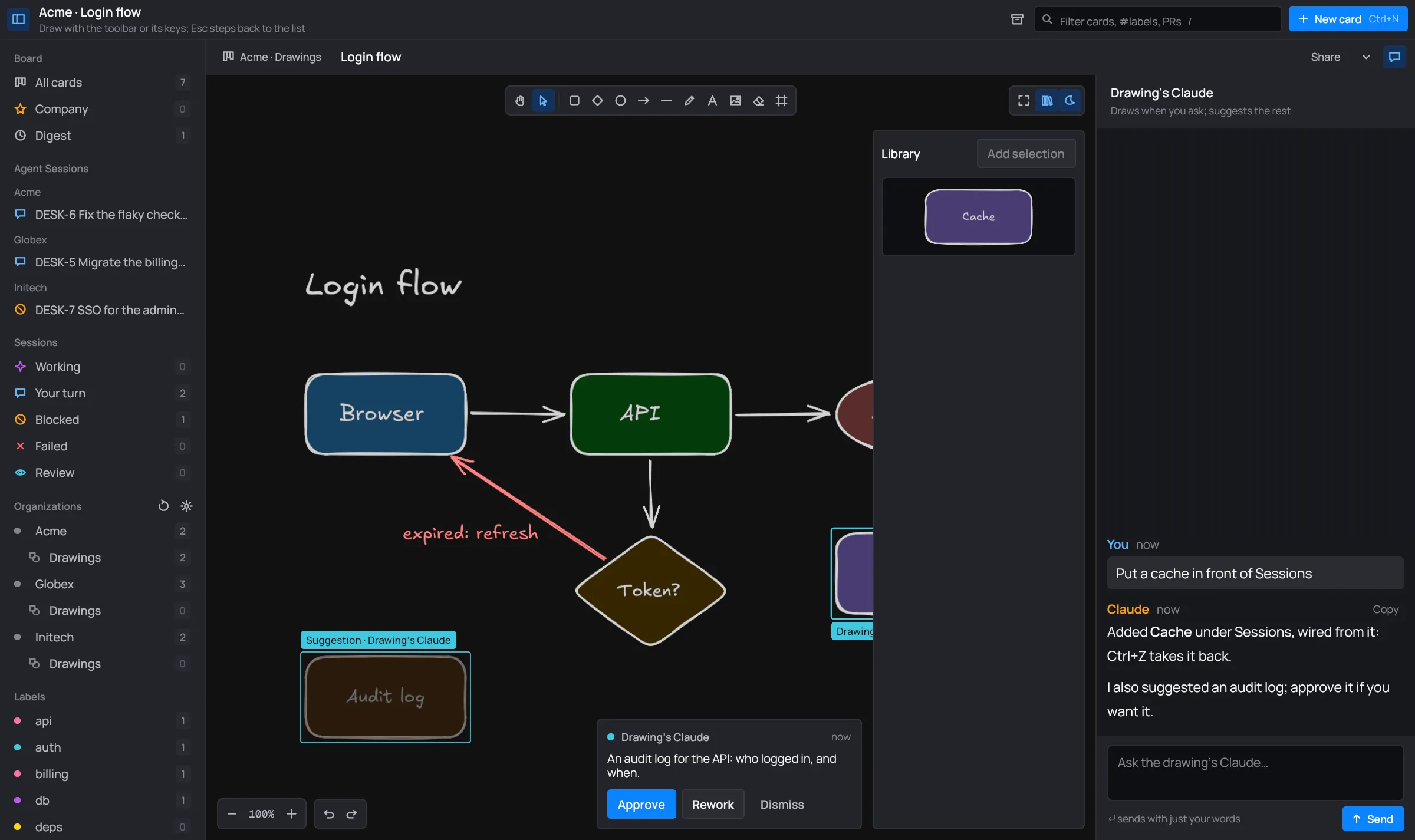
Add selection puts what you selected in it, first. Click an item to put a copy in the middle
of what you see. Its bin takes it out, with an Undo in the toast. The library is an
.excalidrawlib file, the format excalidraw.com’s library uses; see
Import to bring one in.
Copy and paste
Section titled “Copy and paste”Ctrl+C copies the selection, Ctrl+X cuts it, and Ctrl+V pastes in the middle of what you see. Copies go on the clipboard the way excalidraw.com puts them, so you can copy from one to the other both ways. Pasting a picture adds it as an image; pasting other text adds it as a text.
Other keys
Section titled “Other keys”| Keys | What they do |
|---|---|
| Delete or Backspace | Delete the selection. |
| Ctrl+Z, Ctrl+Shift+Z or Ctrl+Y | Undo, redo. |
| Ctrl+D | Duplicate the selection. |
| Ctrl+A | Select everything. |
| Arrows | Move the selection by 1; with Ctrl, by 10. |
| Ctrl+], Ctrl+[ | Bring forward, send backward; with Shift, to the front, to the back. |
The drawing’s keys don’t work while you type in one of desk’s fields: the name, the chat, a frame’s name.